Using End Game
Settings and help#
This page covers the choices that sit outside the three stages: the footer, the menu, the settings overlay, update notices, and how End Game handles latency and bypass.
Footer controls#
The footer changes how this instance of End Game processes and what it shows. These choices are saved with the session.

Oversampling and filter quality#
Oversample runs Clip and Limit at a higher internal rate, which reduces aliasing when you drive them hard. Choose 1x, 2x, 4x (the default), 8x, or 16x. Each step up sounds cleaner on hard clipping and limiting, and costs more CPU and more latency. 1x uses the least CPU and leaves the most room for aliasing.
Quality chooses the oversampling filter, and is grayed out at 1x:
Linear Phase (the default) keeps the phase response neutral. Choose it when transparency matters more than latency.
Minimum Phase has less latency, but shifts phase and can change the feel of transients slightly. From version 1.2.2 it keeps the full treble response; earlier versions lost some of the highest treble at 44.1 and 48 kHz, so a session saved on Minimum Phase in an earlier version now sounds slightly brighter at the very top.
Start at 4x and move up when you want the cleanest clipping and limiting and your CPU allows it.
Dither and bit depth#
Set these for the file you are rendering.
Bit Depth sets the output resolution:
16-bit for CD and other 16-bit delivery.
20-bit only when a specification asks for it.
24-bit (the default) for most high-resolution exports.
32-bit to keep full resolution for further processing.
Dither adds low-level noise that hides the distortion of reducing bit depth:
Off (the default) adds no dither.
TPDF adds neutral, unshaped dither.
Noise Shape moves more of the dither noise to high frequencies, where it is less audible.
Dither only runs while the Limit stage is on, and never at 32-bit. End Game grays out Dither and Bit Depth while Limit is off. Dither the final export only, not files you will process again.
Workspace view and meters#
Visuals chooses the workspace view: ALL, TAB, or STRIP. Meters turns OUT, GAIN, and LUFS on or off in any combination. Interface overview describes the views, and Metering and visuals the meters.
Match levels for a comparison#
Gain Match is an output trim, from -24 dB to +12 dB, for comparing End Game with other versions of your master at the same loudness.
Click the A button with the track playing. End Game measures 3 seconds and sets the trim. It needs at least 3 seconds of audio above -40 LUFS.
Drag the value, double-click it to type a number, or Alt-click it to reset it to 0 dB.
The power button bypasses the trim without clearing it.
Gain Match is printed into your render
The trim changes End Game’s real output, so it is printed when you bounce. The OUT and LUFS meters read before it and do not show it, and a positive trim can push the output above your Output ceiling. Switch Gain Match off with its power button before you render a final master.
Menu and settings#
The menu button at the left of the header holds the actions that are not about sound. The gear at the right opens the settings overlay.

- MenuAbout, licensing, Enable Tooltips, User Manual, and Visit Website.
- SettingsThe Custom loudness target and the waveform display.
The menu contains:
About, with the version you are running.
Your license state and the license actions: Activate License…, License Status, Start Free Trial, or Deactivate…, depending on the state. Activation and licensing explains each one.
Enable Tooltips, which turns every hover description in End Game on or off, including the style descriptions. It does not change the sound.
User Manual and Visit Website.
Settings overlay#
The settings overlay holds preferences that End Game remembers from session to session.
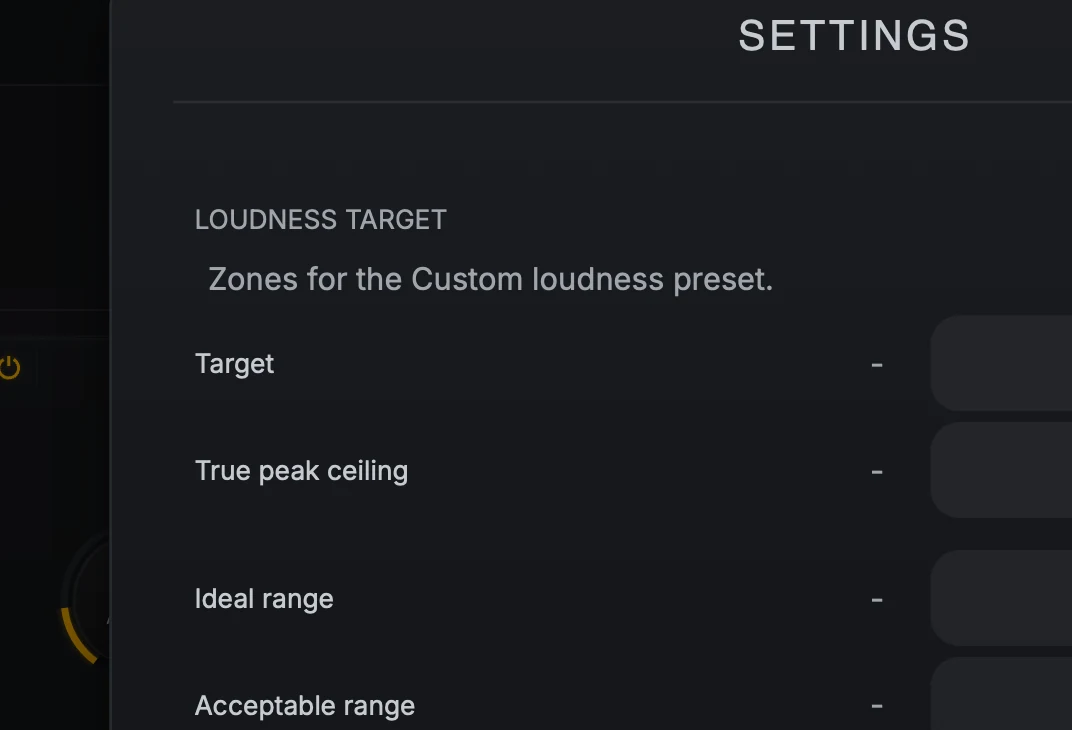
- Target and ceilingThe loudness and true-peak ceiling the LUFS meter uses when you pick Custom.
- Ideal range and Acceptable rangeHow wide the green and amber zones are around your Custom target.
- Scroll mode and Scroll speedPage, Continuous, or Infinite, and how much time the waveform shows.
Set a custom loudness target#
These values take effect when you choose Custom as the LUFS target:
Target is the loudness to aim for.
True peak ceiling is the highest true peak you accept.
Ideal range sets the width of the green zone around the target: where you would be happy to land.
Acceptable range sets the width of the amber zone beyond it: still usable, but worth another look.
Change how the waveform moves#
Scroll mode chooses how the waveform moves across the display:
Page draws from left to right, then clears and starts a new page.
Continuous adds new audio at the right and scrolls older audio off the left, so you always see the latest stretch of time.
Infinite adds new audio at the right and squeezes all the older history in to the left, so nothing scrolls away.
Scroll speed sets how much time the display shows:
Scroll speed |
Page |
Continuous |
|---|---|---|
Slow |
8 seconds |
30 seconds |
Medium |
4 seconds |
10 seconds |
Fast |
2 seconds |
3 seconds |
Infinite ignores Scroll speed, so the menu is grayed out; your choice comes back when you return to Page or Continuous. In TAB with the Clip stage selected, the waveform, clip marks, and threshold line follow the selected lane in every mode.
Update notices#
When End Game can reach the customer portal and finds a newer compatible release, it shows a notice with your version, the new version, and a summary of what changed.
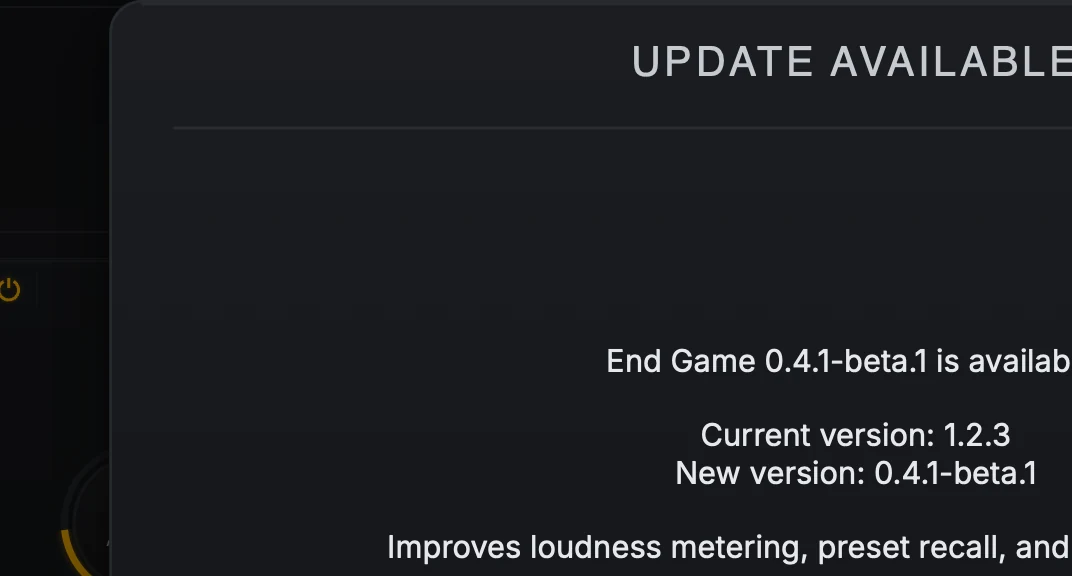
- VersionsThe version you are running, the new version, and a short summary of what changed.
- Your choiceDownload opens the customer portal. Skip This Version hides this release. Ask Next Time closes the dialog.
Download opens the customer portal in your browser. End Game never installs an update by itself.
Skip This Version hides that version on this computer. A later version is still offered.
Ask Next Time closes the notice without hiding the version.
The check stays silent when you are offline or there is nothing new, and it never interrupts the audio. Release builds offer only release versions; beta builds also offer newer betas. With several End Game instances open, each version is offered once.
Latency and bypass#
End Game reports its exact latency to your DAW on every setting, so delay compensation keeps it in time with your other tracks. The latency changes when you change:
Oversample or Quality
the Enhance Style (Detail and Inflate add a small delay)
the Clip Loudness style or Low Protect
a stage’s Stereo or Mid-Side mode
the limiter Style or Lookahead
Your DAW compensates automatically each time.
Switching a stage off with its power button, or turning True Peak on or off, does not change the latency, so comparisons stay in time. The one exception is the Clip power button while a lane uses Loudness: switching Clip off then removes that style’s delay, and your DAW compensates again. Bypassing End Game from your DAW is delay compensated too.