Using End Game
Presets and browser#
Use this page to load, save, and organize presets, and to compare two versions of a master with A and B. Quick work happens in the header; the preset browser is for searching, saving, and organizing.
Step through presets from the header#

- Preset arrowsLoad the previous or next preset straight away.
- Preset nameClick it to open the preset browser. An asterisk means the settings have changed since the preset loaded.
- A↔BCopy A → B or Copy B → A.
- A and BSwitch between the two comparison slots while the track plays.
The arrows either side of the preset name load the previous or next preset straight away, so you can audition while the track plays. An asterisk after the name means you have changed something since the preset loaded.
Each step replaces your current settings. If they matter, save them or copy them to the other comparison slot before you start stepping.
Compare two versions#
A and B are two slots that each hold a complete set of End Game settings. The highlighted slot is the one you hear and edit.
Get a version you like in A.
Click A↔B and choose Copy A → B.
Click B and try something different, for example a harder limiter.
Switch between A and B while the track plays.
If B wins, choose Copy B → A so the winner sits in your main slot.
Comparing slots is quicker than saving presets while you are still deciding. Once you have decided, save the result as a preset.
Compare at the same loudness
A louder version almost always sounds better at first. Use the Auto-Gain buttons on the Enhance and Clip Output knobs, or Gain Match in the footer, so you judge the sound rather than the level.
Find presets in the browser#
Click the preset name in the header to open the preset menu. It lists the factory and user packs, Save and Save As…; choose Browse All… to open the full browser. The browser opens over the plugin window, and nothing changes until you load a preset.
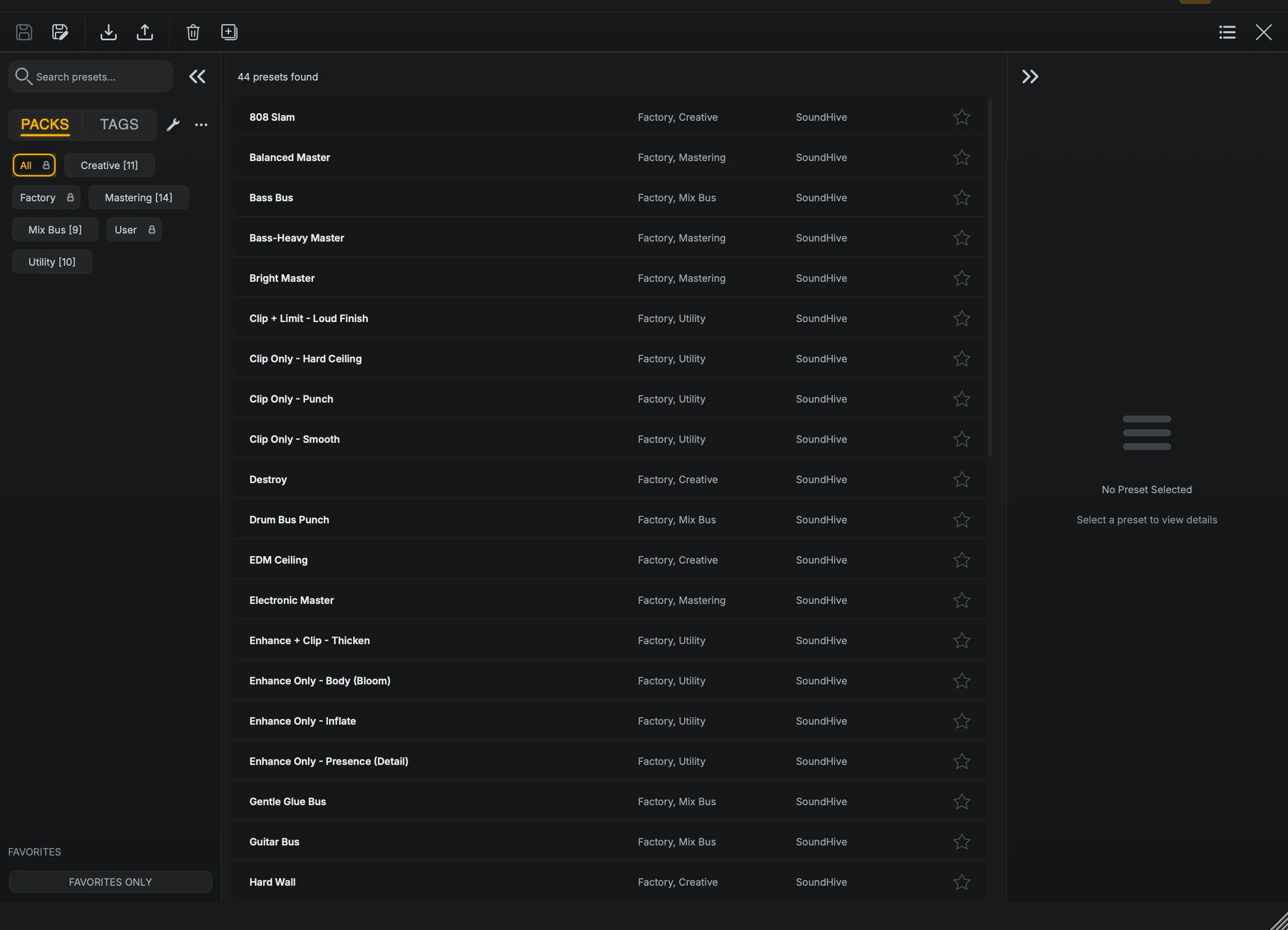
- Search and filtersSearch by name, filter by pack or tag, and switch between Show All and Favorites Only.
- ResultsEvery preset that matches. Click the star on a row to make it a favorite.
- DetailsAuthor, packs, tags, and description for the selected preset. Factory presets are locked.
The browser has three columns:
Left: search by name, filter by PACKS or TAGS, and switch between Show All and Favorites Only.
Middle: the presets that match. Click the star on a row to add it to your favorites.
Right: the selected preset’s author, packs, tags, and description. A lock means the preset is a factory preset and cannot be edited.
Use each layer for its own job:
Packs are broad collections, such as the factory set or a set of your own.
Tags are labels you can combine, such as a genre, a mood, or a delivery target.
Favorites are the short list you reach for in real sessions.
Save and manage presets#
The toolbar at the top of the browser holds the save and file actions.

- Save and Save AsSave overwrites the current user preset. Save As stores a new one.
- Import and ExportBring in a preset file, or write the selected preset to a file.
- Delete and DuplicateRemove the selected user preset, or save a copy of it under a new name.
Save updates the current user preset. It is available once you have changed something.
Save As stores the current settings as a new preset. If the name already exists, End Game asks before replacing it; cancel and nothing changes.
Import loads a preset file into End Game and selects it, so you hear it straight away.
Export writes the selected preset to a file you can archive or move to another computer.
Delete removes the selected user preset.
Duplicate saves a copy of the selected preset with Copy added to its name.
Factory presets cannot be overwritten. Use Save As or Duplicate to make your own version.
Default Preset is a read-only preset with every control at its default. End Game creates it when the preset library is empty and loads it on a fresh start.
Save a preset when you can say in one sentence what it is for, such as “loud pop master” or “gentle streaming pass”. If you cannot name it yet, keep working in A and B instead.
What each instance remembers#
Every End Game instance keeps its own preset name and its changed marker. Closing and reopening the window, reopening the session, or duplicating the track keeps them as they were. The instance also restores its interface: the selected stage and lane, the workspace view, the meters, and the LUFS view.
Factory presets#
End Game installs its factory library alongside the plugin and adds it to the browser the first time it opens. Factory presets are read-only starting points; use Save As or Duplicate to branch one into your own preset. Open the browser from the header and pick a pack to see one group at a time.