Start here
Getting started#
This page takes you from inserting End Game to a finished master. Work through the steps in order, with the track playing, and use your ears for every move as well as the display.
1. Insert End Game#
Put End Game in the last insert slot on your mix bus or master track, after any EQ or compression you already use. Nothing should come after it except metering.
Start playback. The waveform starts to scroll and the meters on the right move. A new instance loads Default Preset, with every control at its default: the Glue limiter style, an Output ceiling of -0.3 dB and 4x oversampling.
2. Start in ALL#
ALL is the view to start in. It shows the finished waveform at the end of the chain, the overlays for all three stages, and the floating panel with the controls for one stage. Choose it with Visuals in the footer if another view is showing.
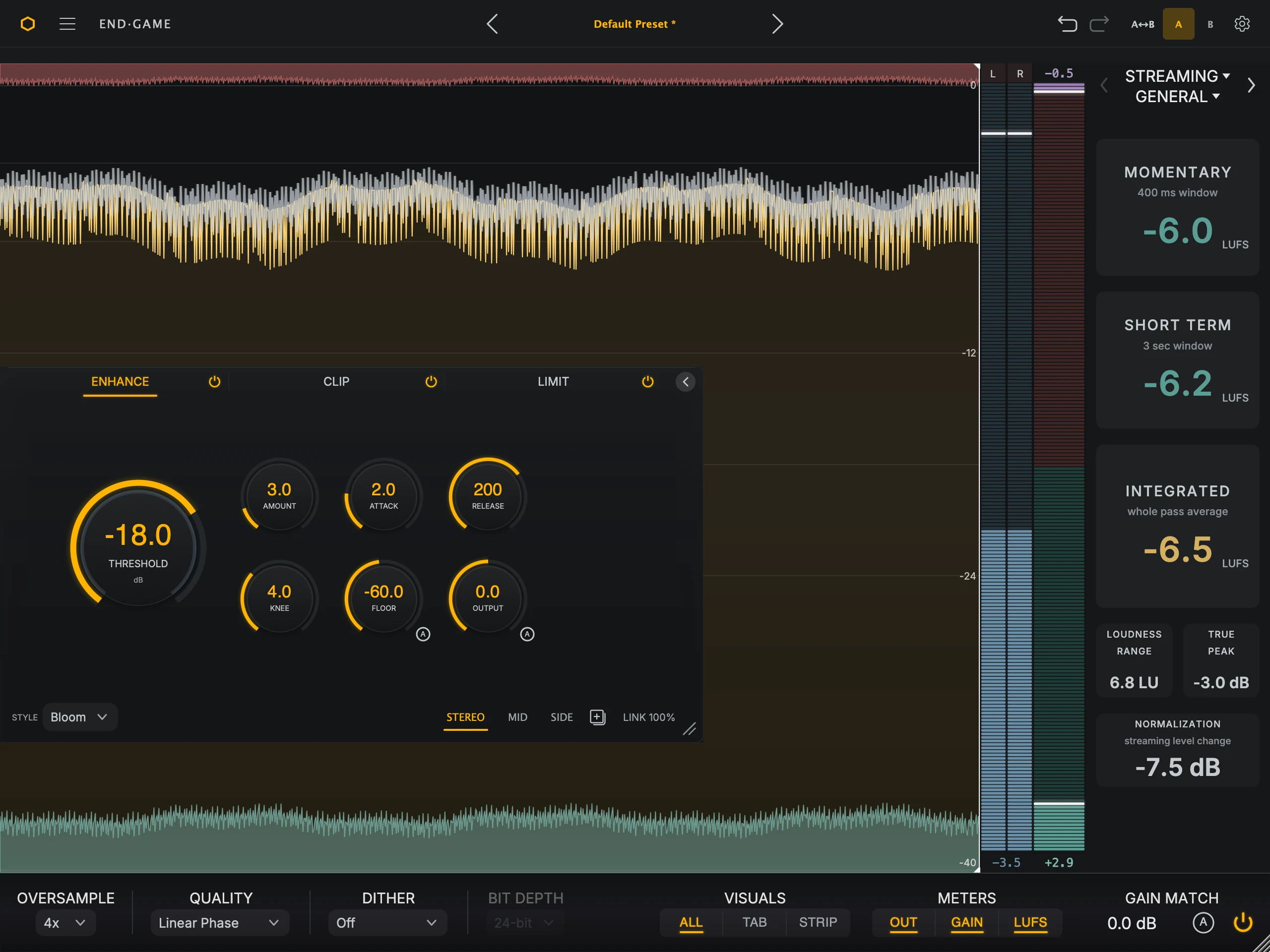
Click Enhance, Clip, or Limit at the top of the floating panel to bring that stage’s controls forward. The stages always process in that order, whichever one you are looking at. Interface overview explains each part of the window.
3. Bring up the detail with Enhance#
Enhance lifts the quieter parts of the signal and leaves the loudest peaks largely alone. Use it when the mix feels flat or small.
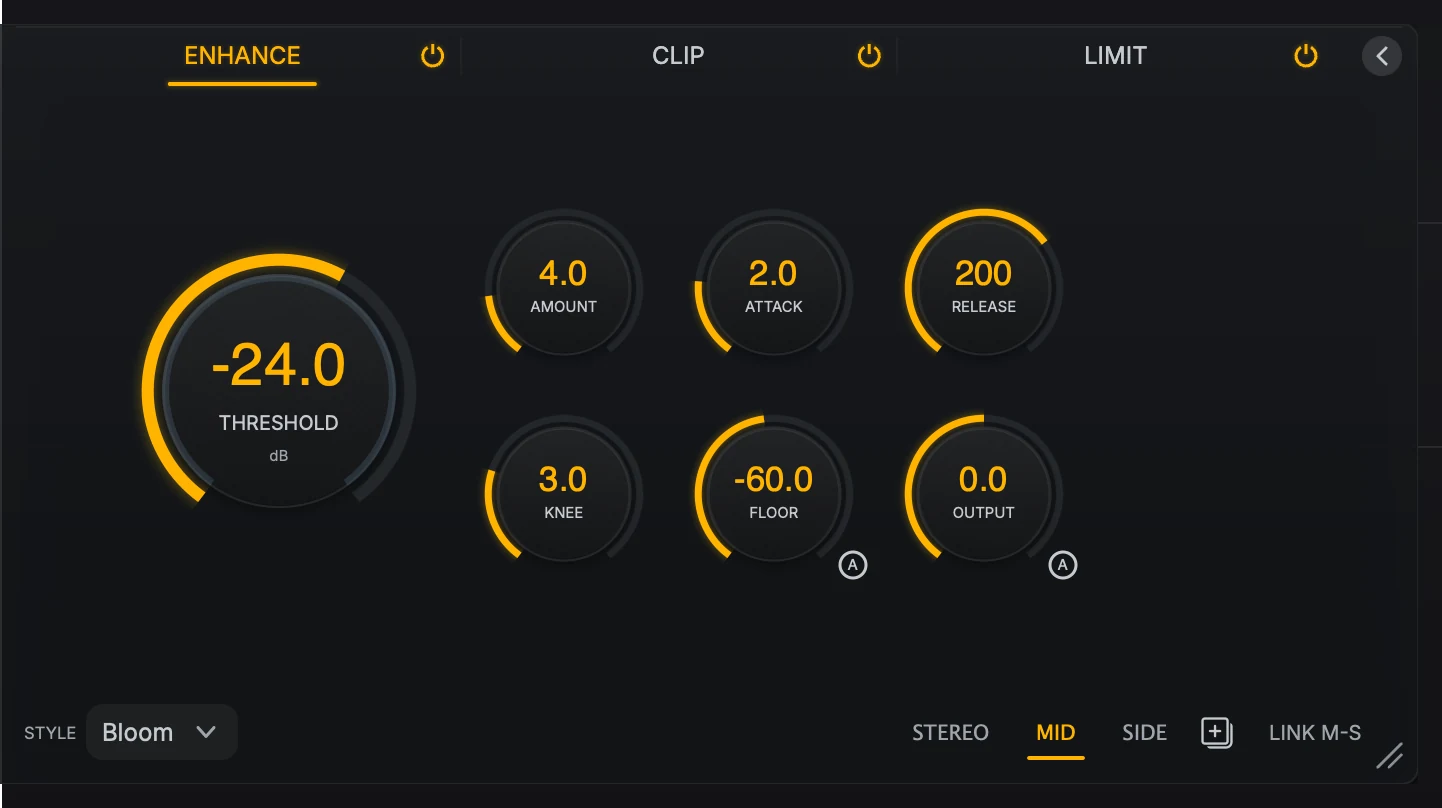
- ThresholdLower it until the quieter parts of the track start to lift.
- AmountRaise it for more lift. Stop when the track feels fuller but still natural.
Click Enhance in the floating panel.
Lower Threshold until the quieter parts of the track start to lift. Reverb tails, room sound, and low-level detail come forward.
Raise Amount for more lift. Stop when the track feels fuller and still sounds natural.
On the waveform, the Enhance overlay rises from the bottom of the display as the stage adds lift.
Compare at the same level
Click the circled A button on the Output knob. End Game matches the stage’s output to its input, so you hear the change in tone and density rather than a simple level boost.
4. Catch the peaks with Clip#
Clip shaves the sharpest transients, such as snare hits and kick attacks, so the limiter does not have to work as hard on them.
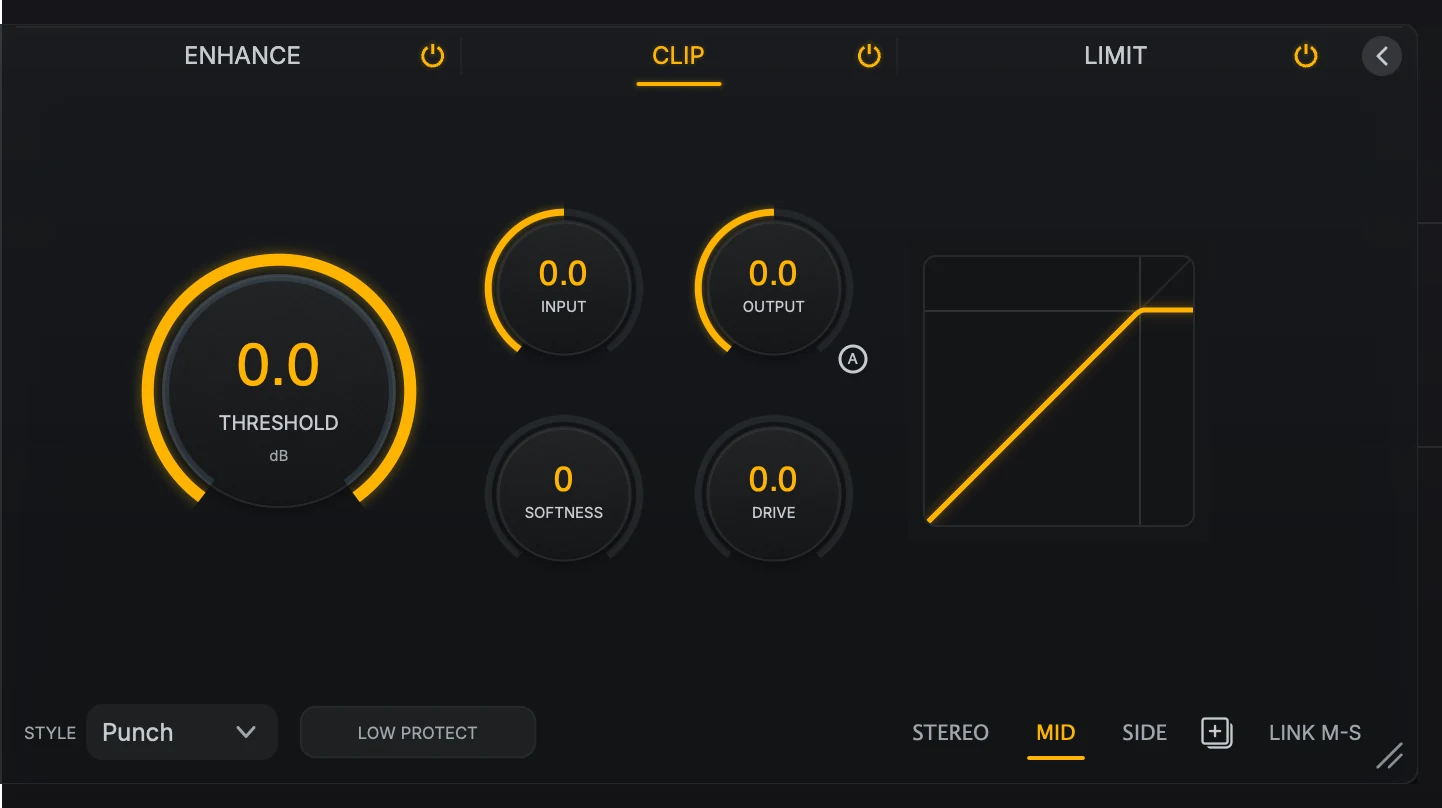
- ThresholdLower it to bring the clip ceiling down onto the loudest transients.
- InputRaise it to feed the same ceiling harder.
Click Clip. The default Punch style is a good place to start.
Lower Threshold, or raise Input, until the loudest peaks start to clip. Clipped peaks turn purple on the waveform.
Listen to the drums. Taking a few dB off the sharpest peaks should keep them punchy. If they flatten, soften, or start to crunch, back off.
5. Set the final level with Limit#
Limit sets how loud the master is and the ceiling it never goes above.
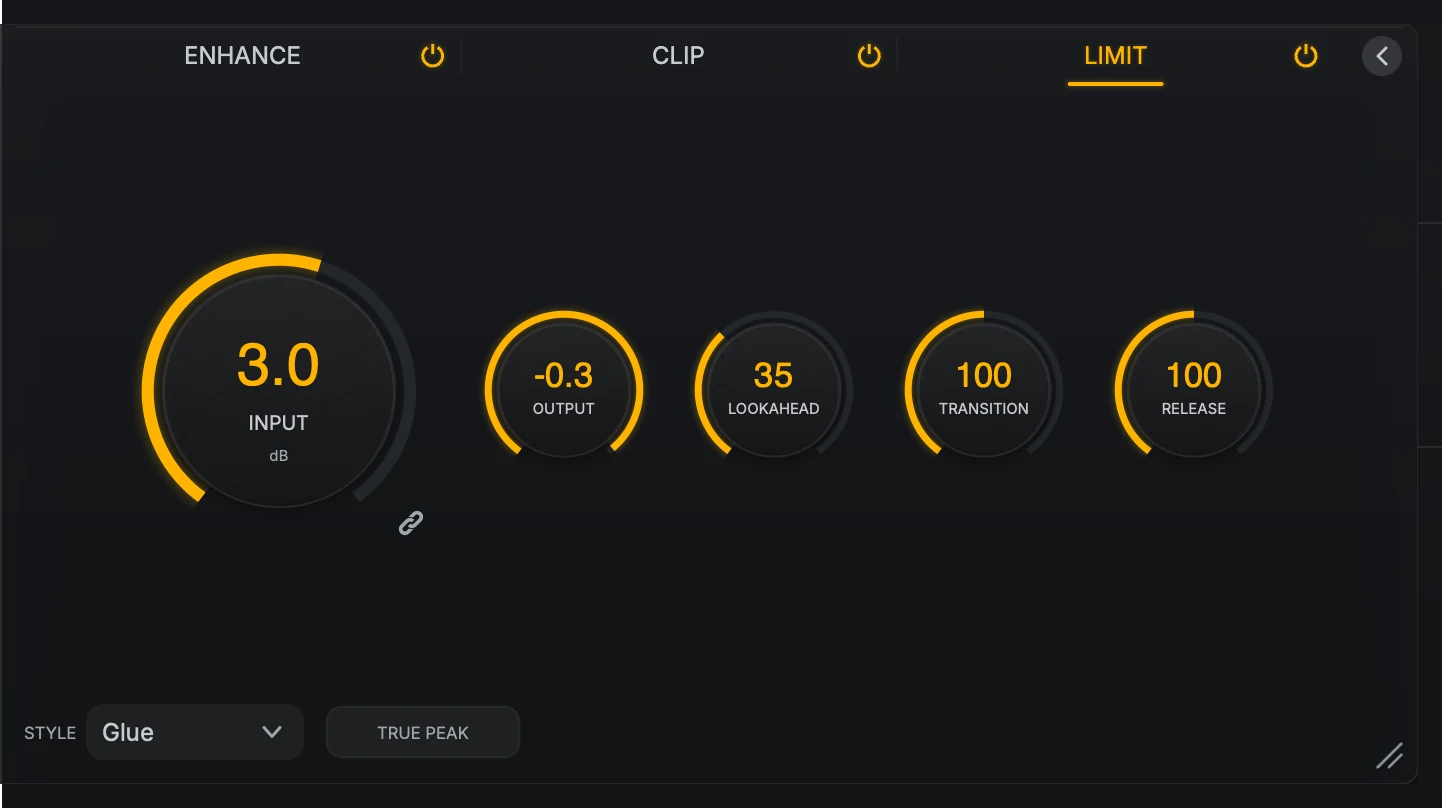
- InputRaise it until the track reaches the loudness you want.
- OutputSet the final ceiling, for example -1.0 dB for streaming.
Click Limit.
Set Output to the ceiling you deliver at. -1.0 dB is a common choice for streaming.
Raise Input until the track reaches the loudness you want. The limiter’s gain reduction hangs from the top of the waveform, and the master gets louder and denser as you push.
If the result starts to pump, distort, or lose its punch, lower Input, or let Enhance and Clip do a little more of the work.
The Style menu changes how the limiter sounds when you push it. Enhance, Clip, and Limit compares all six styles.
6. Check loudness and deliver#
Turn on LUFS with Meters in the footer and choose your delivery target at the top of the LUFS meter.
Play the whole track from the start. The I (integrated) value is the loudness of the full pass. Compare it with your target.
Turn on True Peak in the Limit stage, so no inter-sample peak goes above your Output ceiling.
If you are exporting at 16-bit or 20-bit, set Bit Depth to match and choose TPDF or Noise Shape under Dither.
Turn Gain Match off before you bounce
Gain Match in the footer trims End Game’s real output. If you used it for a comparison, switch it off with its power button before you render the final master, or the trim is printed into the file.
Metering and visuals explains every meter reading, and Settings and help covers oversampling, dither, and the other footer choices.
Next steps#
Interface overview walks the window region by region.
Enhance, Clip, and Limit explains each stage, every style, and how to work through it.
Metering and visuals explains what each meter reads and the loudness targets.
Presets and browser covers saving and comparing your settings.