Start here
Interface overview#
Use this page to find your way around End Game. The window has four regions, and the sections below take them one at a time.
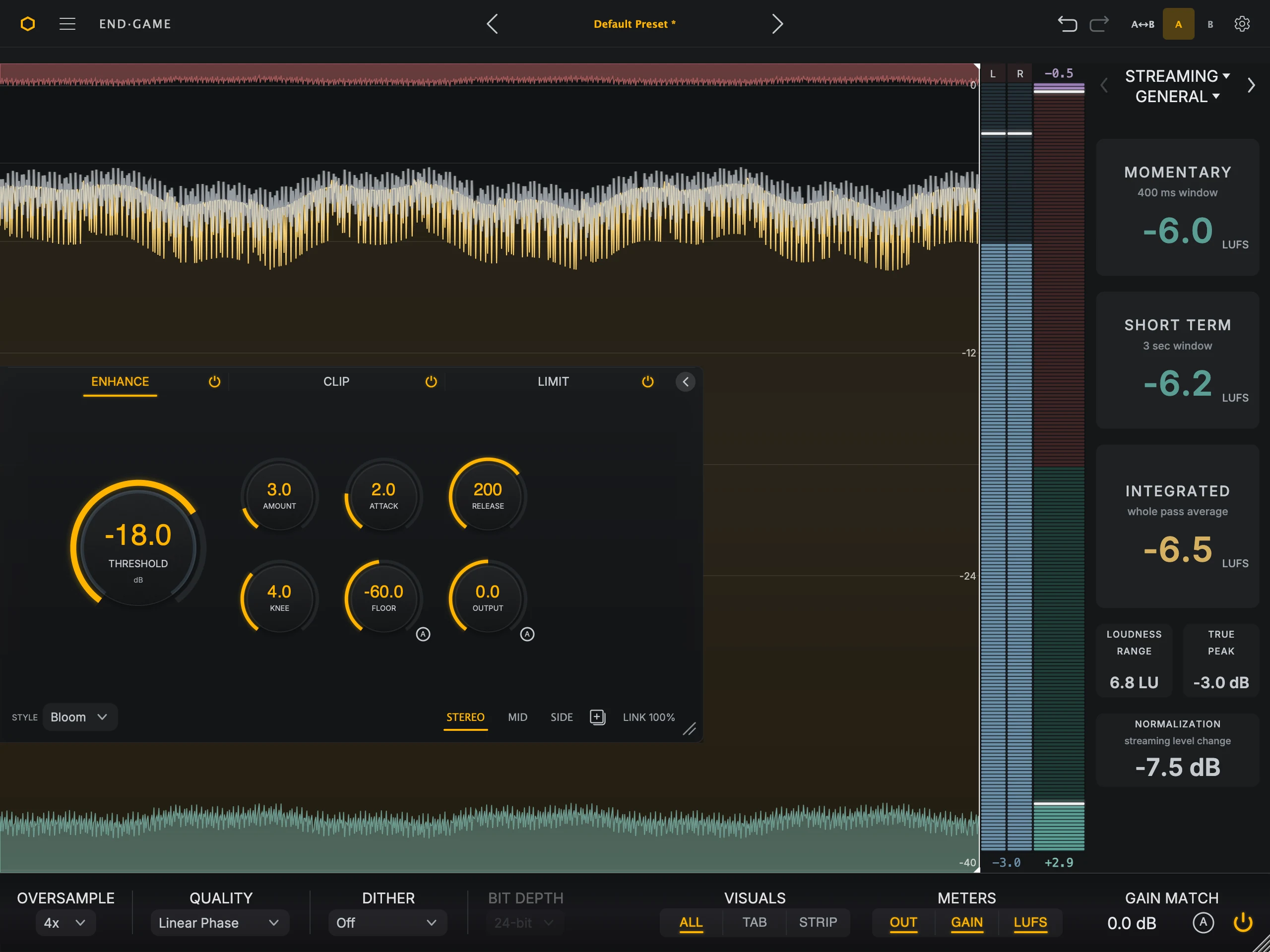
- HeaderPresets, A/B comparison, undo and redo, the menu, and settings.
- WorkspaceThe waveform, the stage overlays, and the controls for ALL, TAB, or STRIP.
- Meter columnThe OUT, GAIN, and LUFS meters, visible in every workspace view.
- FooterOversampling, dither, bit depth, the view and meter choices, and Gain Match.
Header#
The header works on the session as a whole: presets, comparison, undo, and the menus. Nothing here changes one stage on its own.

- MenuAbout, licensing, Enable Tooltips, User Manual, and Visit Website.
- Preset name and arrowsThe arrows load the previous or next preset. Click the name to open the preset browser.
- Undo and redoStep back or forward through your recent control changes.
- A↔BOpens Copy A → B and Copy B → A, so one slot can start from the other.
- A and BChoose the slot you are listening to and editing.
- SettingsOpens the settings overlay for the Custom loudness target and the waveform display.
Presets and browser covers the preset controls and the A/B comparison. Settings and help covers the menu and the settings overlay.
Workspace#
The workspace shows the waveform, the stage overlays, and the stage controls. Choose how it is laid out with Visuals in the footer: ALL, TAB, or STRIP.
ALL shows the finished result#
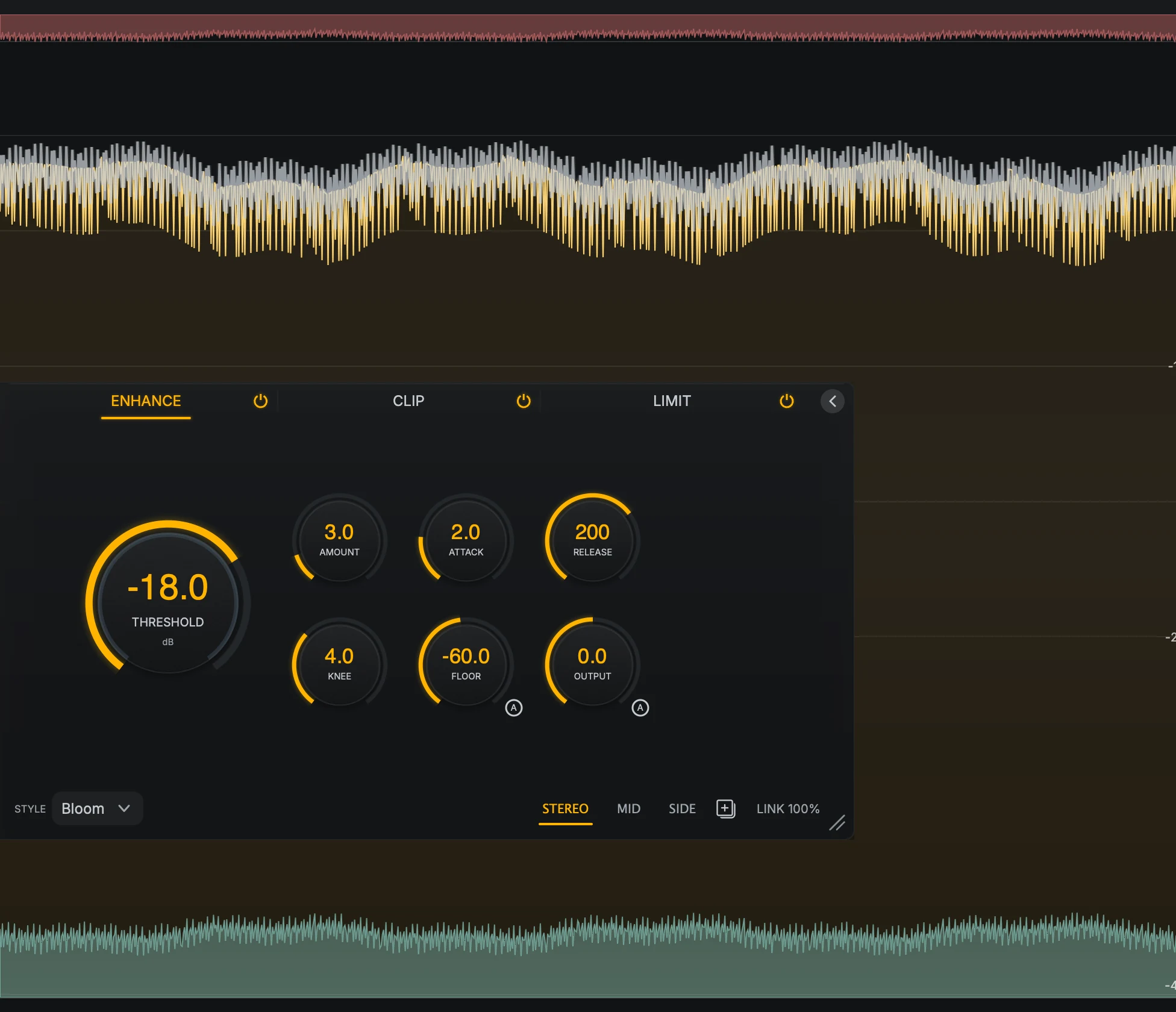
- Finished waveformThe signal at the end of the chain: the filled shape is the peak level, the white line the RMS level.
- Stage overlaysEnhance lift rises from the bottom, limiter gain reduction hangs from the top, and clipped peaks turn purple.
- Floating panelThe controls for the selected stage. Use the tabs to switch stage, or the chevron to fold the panel away.
ALL shows the signal at the end of the chain, with the overlays of all three stages on top of it. Use it to judge the master as a whole. The floating panel shows one stage at a time; its tabs choose the stage, and its power buttons switch a stage on or off.
TAB shows one stage#
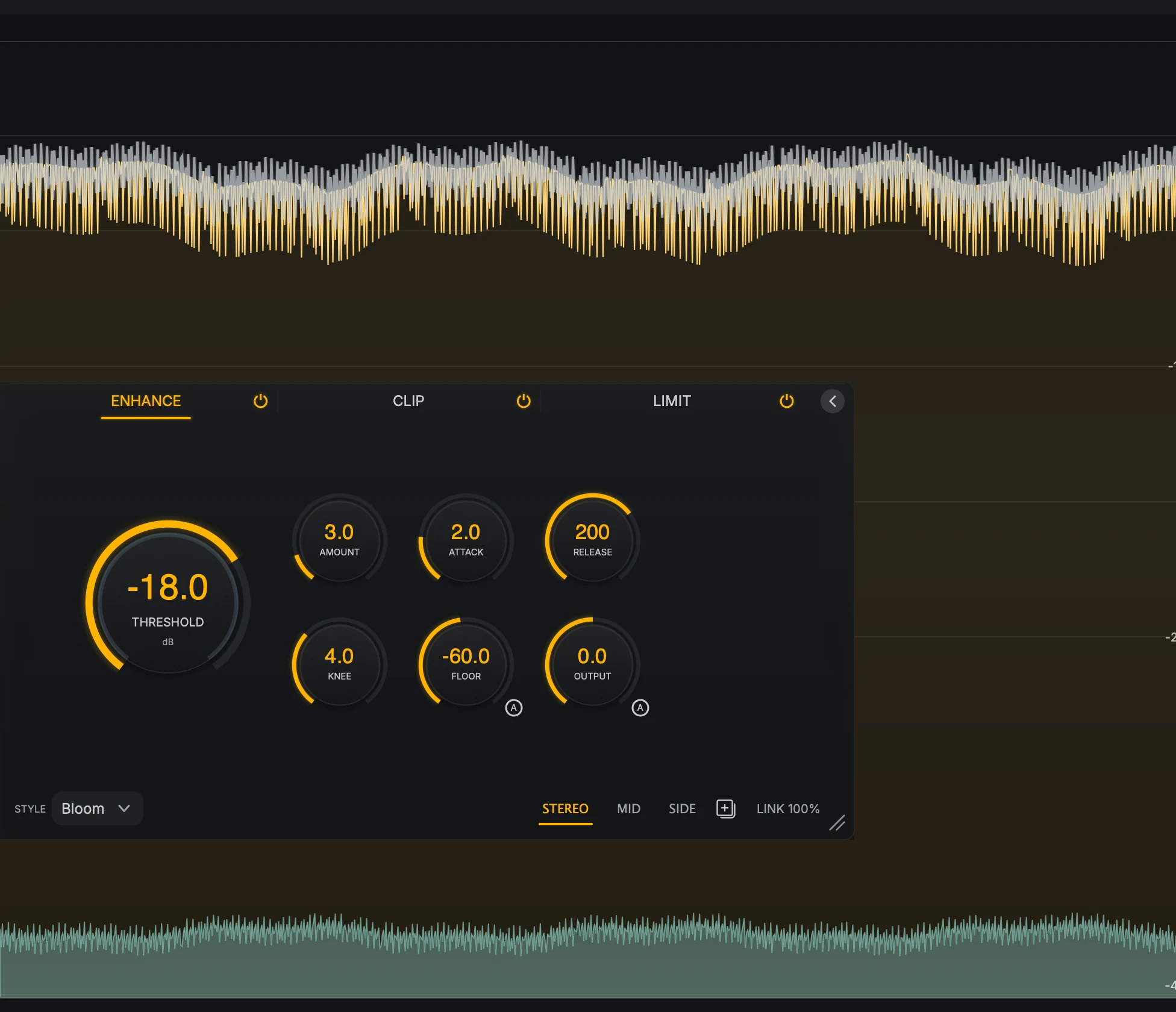
- Stage waveformShows the signal at the output of the selected stage, not the end of the chain.
- Stage controlsThe same floating panel as ALL. Picking a stage tab also changes what the waveform shows.
- Stereo, Mid, and SideWhen the stage is in Mid-Side mode, the waveform follows the lane you select here.
TAB shows the signal at the output of the selected stage, with that stage’s overlay only. Use it when you need to see exactly what one stage is doing. When the stage is in Mid-Side mode, the waveform follows the Mid or Side lane you select.
STRIP shows every stage at once#
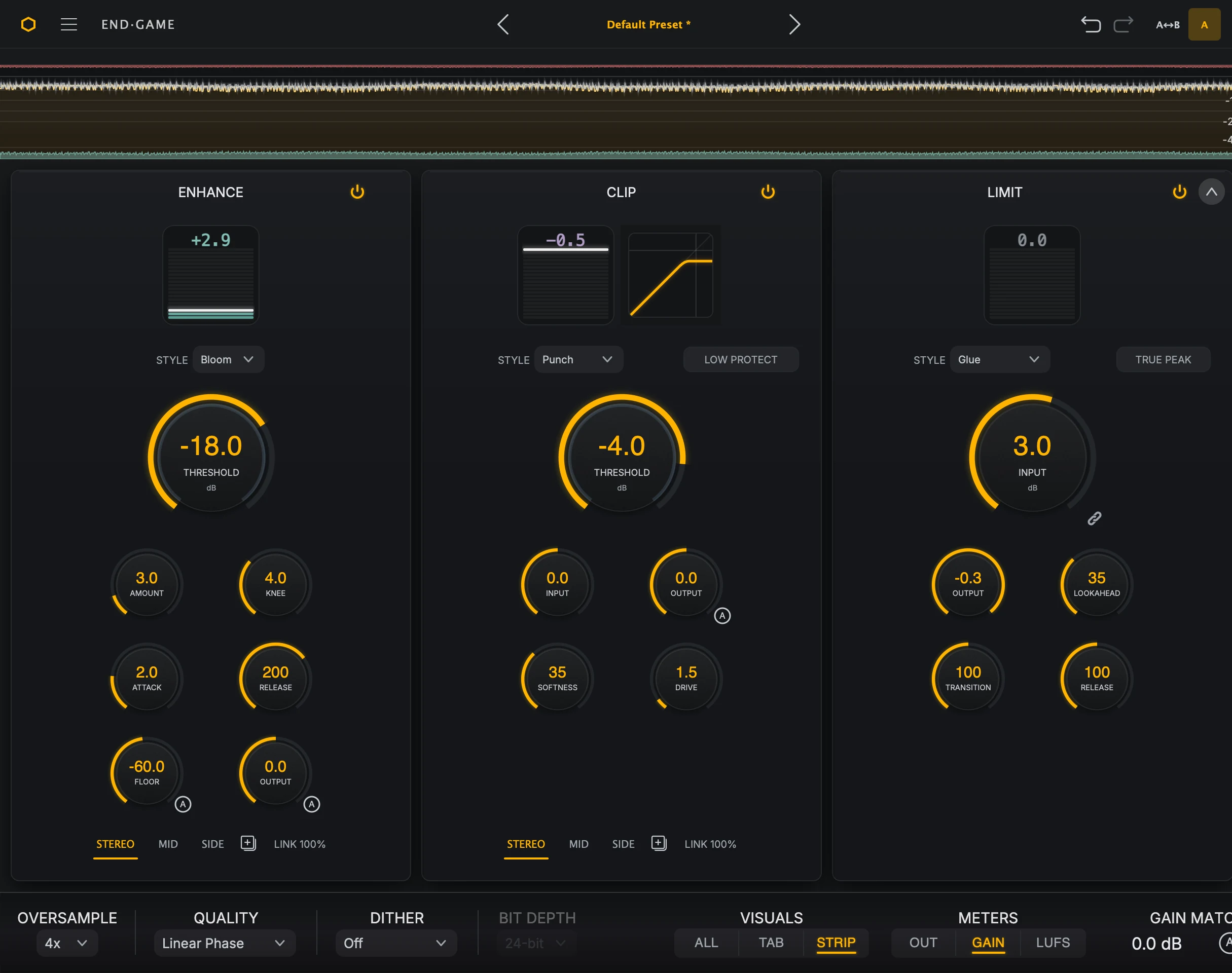
- Finished waveformA shorter view of the output, so the stage controls get the room.
- Three stage panelsEach panel has its own gain meter, style menu, controls, and power button.
- FooterSwitch views and meter pages from here without leaving STRIP.
STRIP places the three stages side by side under a shorter waveform. Each panel has its own gain meter, style menu, and power button. Use it when several stages need small moves and you want them all in reach.
Working with controls#
Every knob in End Game works the same way:
Type a value. Double-click a knob, type the number, and press Enter or click anywhere else in the plugin. Press Esc to cancel.
Reset to default. Alt-click a knob (Option-click on macOS).
Fine adjustment. Hold Shift while dragging to move in steps a tenth the size. Press or release Shift during a drag without a jump in value.
Nudge. Turn the mouse wheel over a control.
Step. Press Tab to focus a control, then use the arrow keys.
Fold the panel away. In ALL and TAB, click the chevron at the right of the floating panel’s tabs to fold it down to a single chevron, so the whole waveform is visible. Click that chevron to bring the controls back.
The Link slider and Gain Match readout also support Shift-drag, the mouse wheel, and arrow keys.
Meter column#
The meter column on the right stays visible in every workspace view. Choose which meters it shows with Meters in the footer.
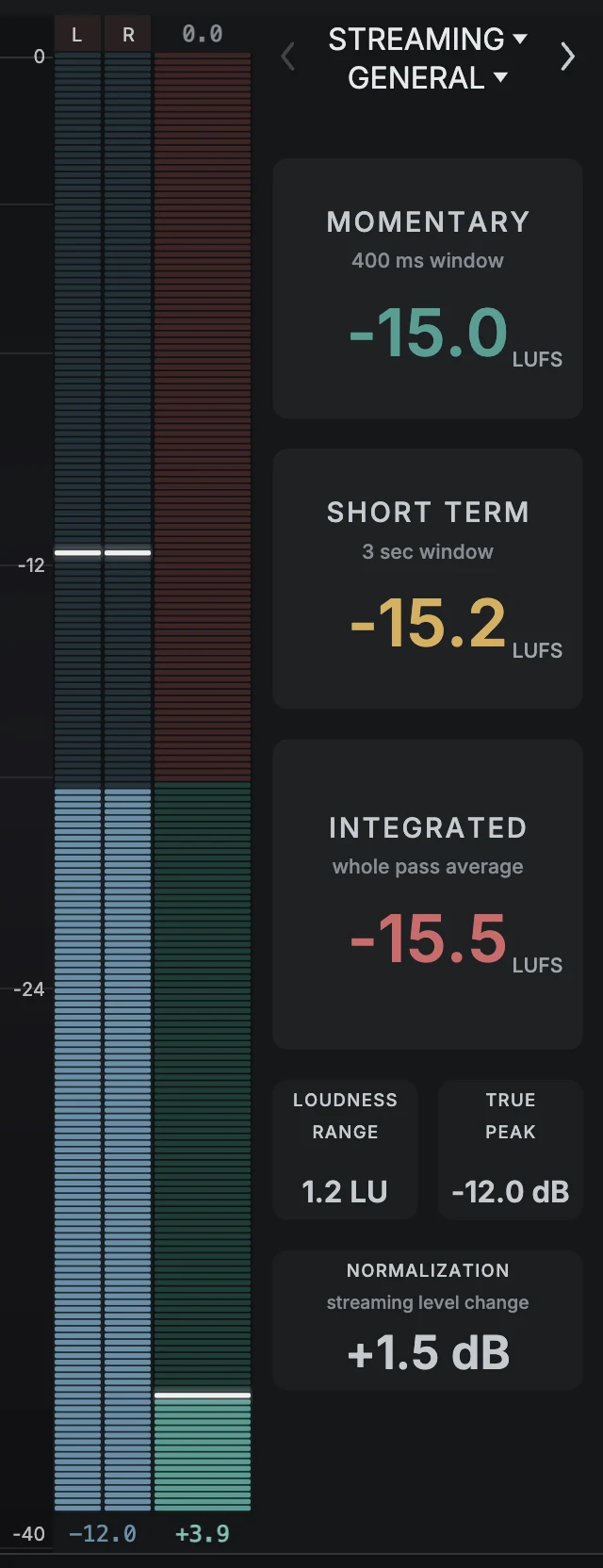
- OUTLeft and right output peaks at the end of the chain.
- GAINHow much the stage you are viewing is lifting or reducing the signal.
- LUFSLoudness against the delivery target you choose at the top of the column.
Metering and visuals explains how to read each meter.
Footer#
The footer holds the choices that apply to the whole plugin: processing quality and output format on the left, the workspace and meter views on the right, and Gain Match at the far right.

Settings and help explains each footer choice and its cost.