Using End Game
Enhance, Clip, and Limit#
This page explains each stage in turn: what it does, its styles, every control, and a way to work through it. The signal always passes through Enhance, then Clip, then Limit.
Each stage has a power button beside its name. Switching a stage off keeps its latency, so a bypass comparison stays in time (one exception applies to Clip). Hover a Style menu to read what the current style does, or open the menu and hover an entry before you choose it.
Enhance#
Enhance is an upward process: it lifts material below Threshold and leaves louder material largely alone. The quieter the material, the more lift it gets. Use it to bring forward low-level detail, reverb tails, and room sound, and to make a mix feel denser before the clipper and limiter take care of the peaks.
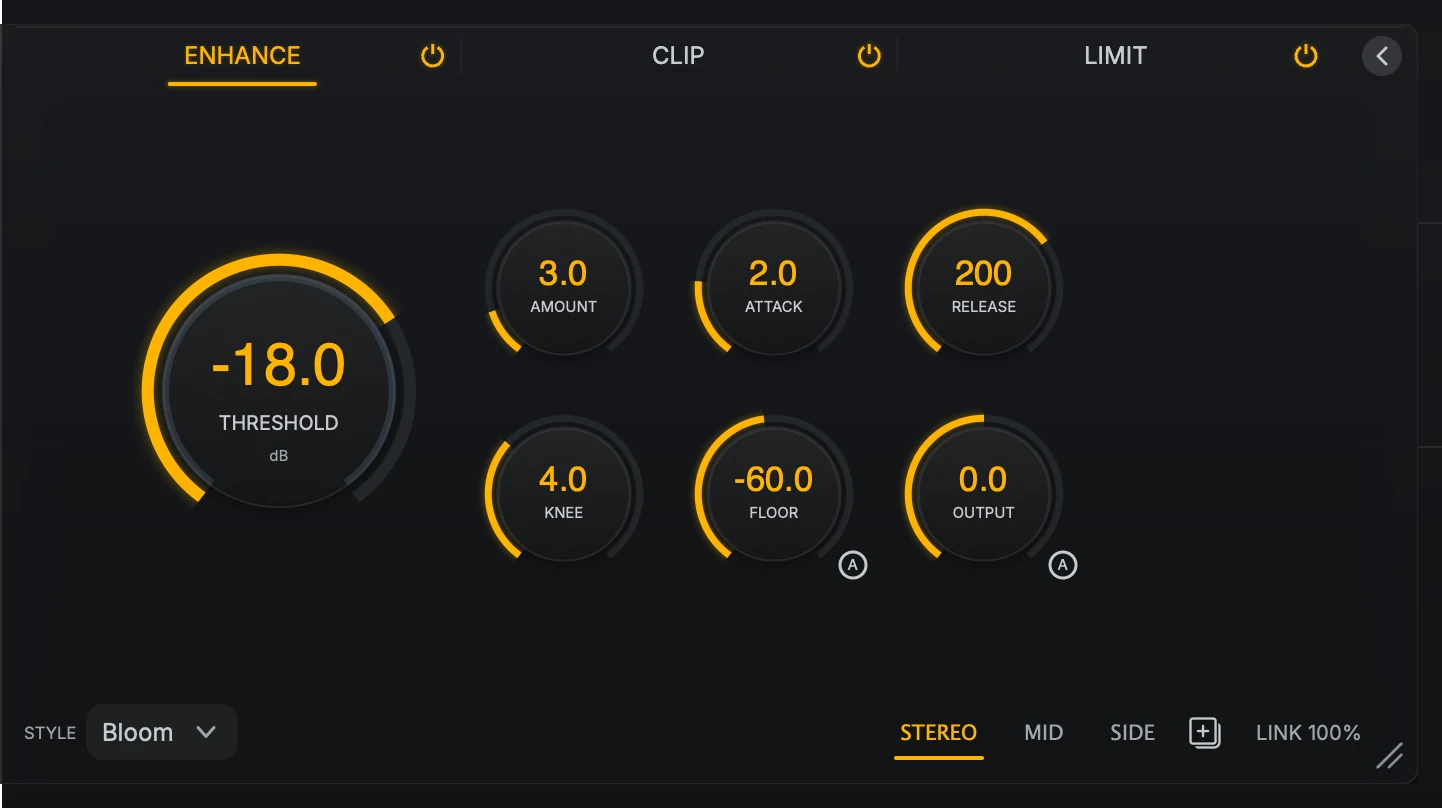
- StyleBloom, Detail, or Inflate. Two of the knobs change with the style.
- Auto Floor and Auto-GainThe circled A buttons set Floor and Output for you.
- Lanes, copy, and linkStereo, Mid, and Side lanes, the lane copy button, and Link or Link M-S.
Enhance styles#
The style decides how the lift is applied, and which two knobs sit in the second slot of the panel.
Style |
What it does |
Style controls |
Latency |
|---|---|---|---|
Bloom |
A broad, full-band lift that opens up presence and punch. |
Amount, Knee |
None |
Detail |
Lifts each frequency band on its own, for clarity and air. |
Amount, Focus |
Small |
Inflate |
Adds density with harmonic weight as well as lift. |
Intensity, Character |
Small |
End Game reports the latency to your DAW, which compensates for it automatically.
Enhance controls#
Threshold sets the level below which the stage lifts. Raise it to bring more of the track into the enhancement range. A live ring on the knob shows where the incoming level sits against the threshold.
Amount (Bloom and Detail) sets the most lift the stage can add.
Intensity (Inflate) sets how hard Inflate leans into its compression and harmonics. Higher settings add more density and saturation.
Knee (Bloom) sets how gradually the lift fades in around the threshold. Higher settings sound gentler.
Focus (Detail) sets how strongly Detail follows its tuned band balance, which gives a little more support to the lows and presence and holds the extreme top back. Negative settings flatten the balance for an even lift; positive settings exaggerate it.
Character (Inflate) shifts the added harmonics. Negative settings sound rounder and weightier; positive settings sound brighter and more forward.
Attack sets how quickly the lift steps aside when the signal gets louder. Faster settings keep transients clean.
Release sets how quickly the lift returns as the signal falls away. Slower settings let each sound finish decaying before the detail comes forward.
Floor stops the stage from lifting anything quieter than this level, so noise, breaths, and hiss stay where they are. Click the circled A button on the knob (Auto Floor) and End Game listens to the noise floor and sets Floor just above it.
Output sets the stage’s output level. Click its circled A button (Auto-Gain) to match the output to the input, so you can compare the tone change without the extra level flattering it.
The circled A buttons change color while they listen and when they have finished.
Work through Enhance#
Pick a style: Bloom for a broad lift, Detail for clarity band by band, or Inflate for extra density and harmonic weight.
Set Floor with Auto Floor, so the stage leaves the noise floor alone.
Lower Threshold until the quieter parts of the track start to come forward.
Raise Amount or Intensity until the track feels fuller. If it starts to sound exaggerated or brighter but smaller, ease back.
Shape the result with Knee, Focus, or Character, then Attack and Release if the lift feels too abrupt or too slow.
Click Auto-Gain on Output and compare with the stage switched off.
Clip#
Clip flattens peaks above Threshold. It takes the sharpest transients off before they reach the limiter, so the limiter can make the track louder with less work and less pumping.
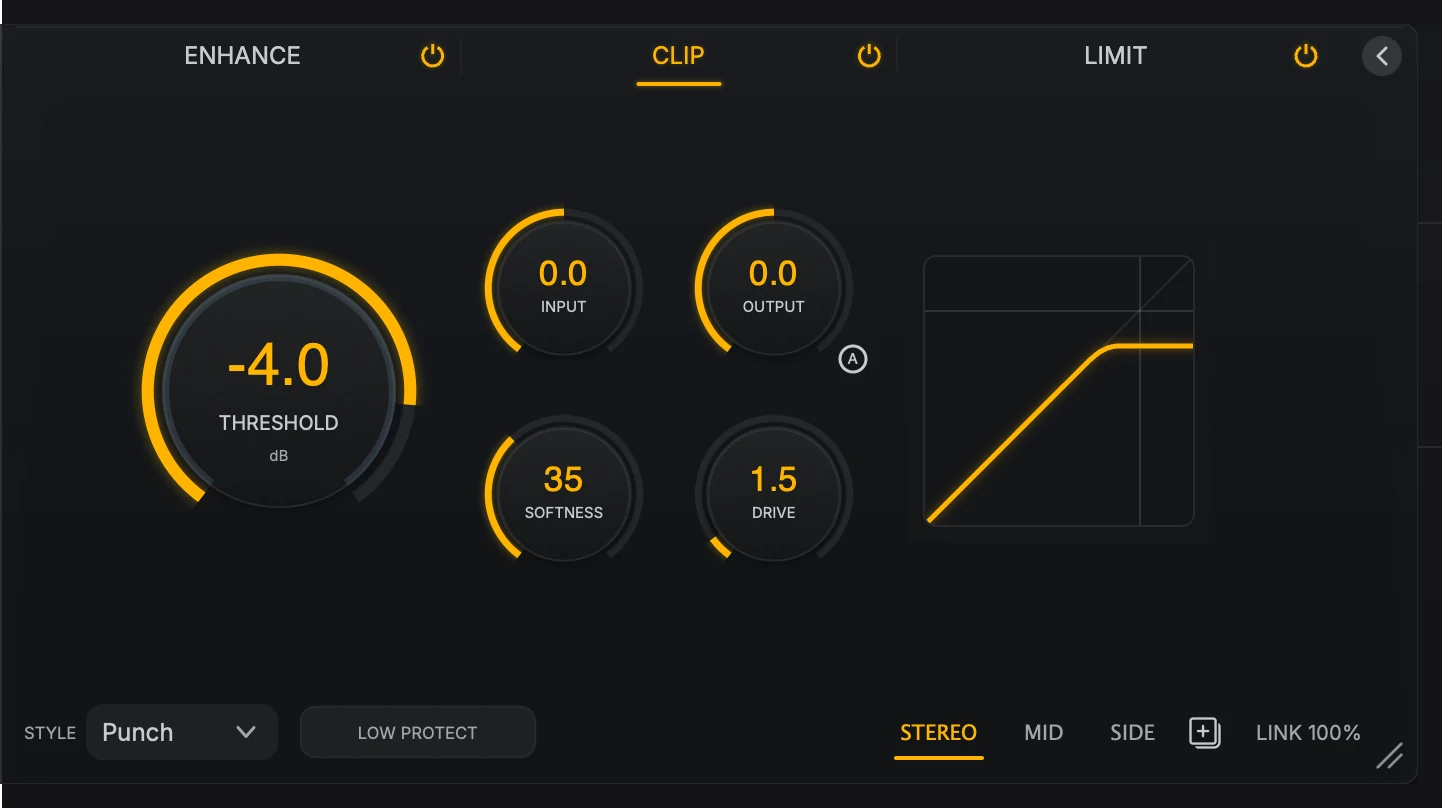
- StyleHard, Punch, Smooth, or Loudness.
- Low ProtectKeeps the low bass out of the clipper.
- Transfer curveShows the shape of the current clip curve: where it bends and how hard.
Clip styles#
Style |
What it does |
Softness |
Latency |
|---|---|---|---|
Hard |
The firmest ceiling. Holds peaks flat at the threshold for the most level and bite. |
No effect |
None |
Punch |
Keeps more of the front edge of each hit. The default. |
Used |
None |
Smooth |
Rounds peaks off more gently and spreads the action wider. |
Used |
None |
Loudness |
Reacts early to small peaks and shapes them gently, so you can push level without the top end turning brittle. |
No effect |
Small |
You can switch styles while the track plays. End Game smooths the change, so there is no click.
Clip controls#
Input sets how hard the signal hits the clipper.
Threshold sets the clip ceiling. Lower it and the clipper works earlier and more often. The live ring on the knob tints the part of the signal above the threshold, which is the part being clipped.
Drive adds warm harmonic saturation on every style. At 0 dB it is off and the clip curve is unchanged. Turn it up for a fuller sound with softer edges; Threshold still sets the ceiling.
Softness sets how gently the clipper bends into clipping. Low settings sound firmer and more obvious, high settings rounder.
Output sets the stage’s output level. Its circled A button (Auto-Gain) matches the output to the input for a fair comparison.
Low Protect keeps the low bass out of the clipper, so kick and bass cannot muddy the mids when you drive the stage hard. The bass still follows Input and Output and still goes through the limiter. It is off by default.
The transfer curve beside the knobs draws the current clip shape: where it bends and how sharply.
Low Protect adds latency
Turning Low Protect on adds latency. End Game reports it to your DAW, which compensates automatically, but leave it off if you are monitoring live through End Game.
The Clip stage also removes any DC offset, and at sample rates of 88.2 kHz and above with oversampling on it gently rolls off content above the audible range. There is no switch for either. Versions before 1.2.2 also filtered the deepest bass and the highest treble whenever Clip was on, so a session saved in an earlier version can sound slightly fuller and more open now.
Work through Clip#
Pick a style. Punch is a good start; try Hard for the most level, Smooth for gentler peaks, or Loudness for level with a smooth top end.
Lower Threshold, or raise Input, until the loudest peaks start to clip. Clipped peaks turn purple on the waveform, and the GAIN meter shows how much is coming off.
Add Drive if you want more warmth and body. On Punch and Smooth, use Softness to decide how gently the clipper takes hold.
On bass-heavy material, turn on Low Protect if the low end starts to smear into the mids.
Match the level with Auto-Gain on Output and compare with the stage switched off.
You have gone too far when the drums lose their shape, the track flattens, or you hear distortion across the whole mix rather than on the peaks. Back off and let Enhance or Limit do more of the work.
Limit#
Limit holds the output under a fixed ceiling and sets how loud the master is. It is the last stage and the one that decides your final level.
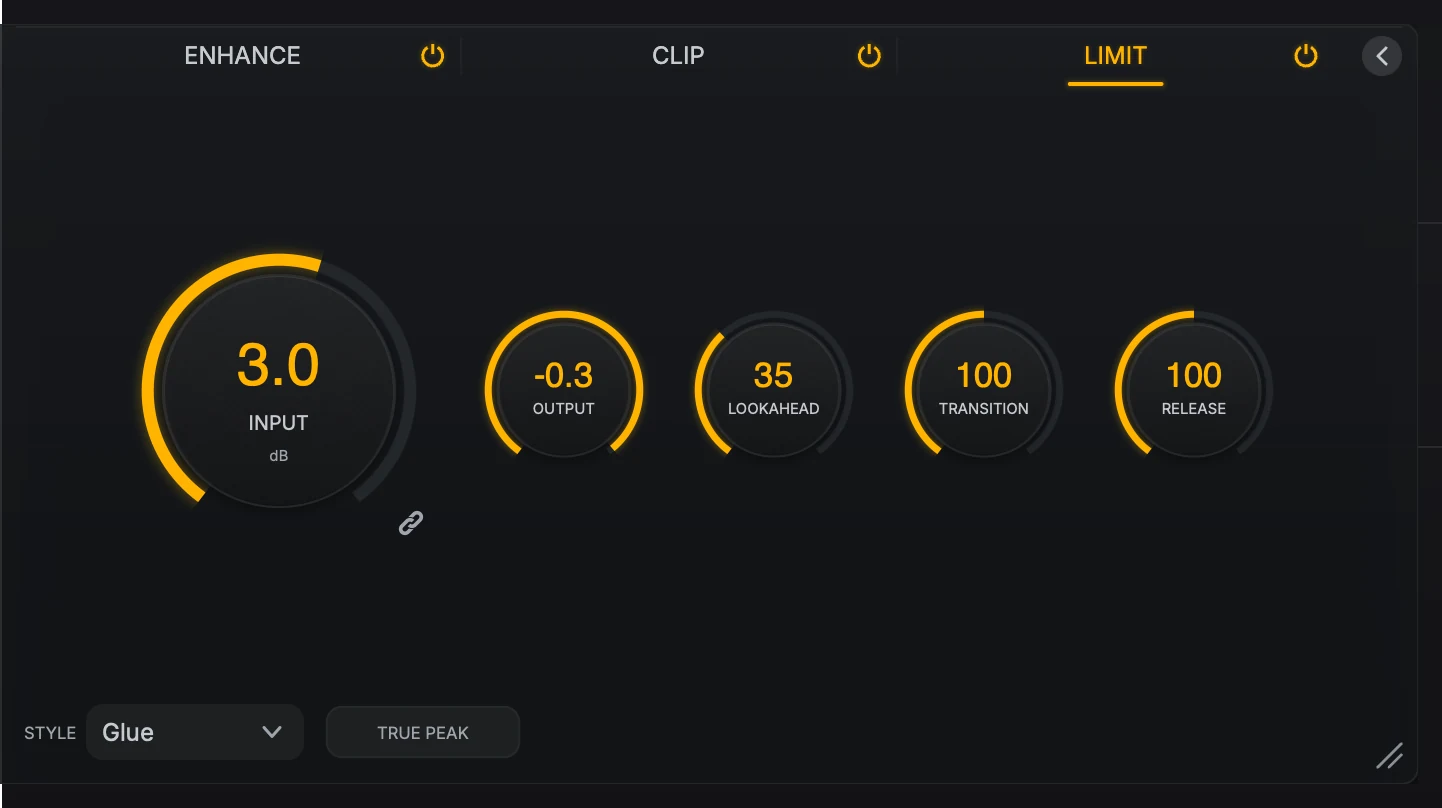
- Input/Output linkWhen it is on, raising Input lowers Output by the same amount.
- LookaheadHow early the limiter prepares for peaks. More lookahead adds latency.
- Style and True PeakSix limiter styles, and the final inter-sample peak stage.
Limit controls#
Input drives the signal into the limiter. More Input means more limiting: a louder, denser master that distorts if you push too far.
Output sets the final level after the limiter, from -24 dB to 0 dB. This is the ceiling you deliver at. The default is -0.3 dB.
The chain-link button next to Input links Input and Output in opposite directions. With it on, raising Input by 3 dB lowers Output by 3 dB, so you hear the limiter work harder without the result simply getting louder. The link follows your own knob moves only; host automation moves each control on its own. Output stops at 0 dB while Input keeps moving.
Lookahead sets how early the limiter prepares for peaks, from 0% to 100% of the chosen style’s range. The default is 0%, the most immediate setting and the least latency that style allows. Higher settings sound smoother and more controlled, give up a little loudness, and add latency.
Transition sets how the limiter hands over from fast peak control to slower control of the overall level. Lower settings feel faster and punchier, higher settings smoother and less grabby. 100% is the style’s own setting.
Release scales the style’s recovery time, from 0% to 200%. Lower settings recover faster and sound livelier but can pump; higher settings sound smoother but can feel held down. 100% is the style’s own setting.
Style chooses the limiter’s voice. The styles are compared below.
True Peak adds a final stage that catches inter-sample peaks, so no reconstructed peak in the rendered file goes above Output, even on an independent true-peak meter. It can shave peaks slightly more. Its small delay is part of End Game’s latency whether True Peak is on or off, so switching it never changes the timing.
Limiter styles#
The six styles are listed quietest to loudest. They differ most in how quickly they let go after a loud passage, which decides how much of the music’s own movement survives, and in how much character they add when you drive them hard.
Style |
Loudness |
Choose it for |
Recovery |
Latency at 0% Lookahead |
|---|---|---|---|---|
Safe |
1 (quietest) |
Broadcast-safe, hands-off protection |
Long and steady |
Lowest |
Silk |
2 |
Smooth, dense, polished masters |
Gentle |
Moderate |
Transparent |
3 |
The least change to your sound |
Lets go soonest of the clean styles |
Lowest |
Glue |
4 |
Everyday mastering, a finished, joined-up feel (default) |
Slowest to let go |
Moderate |
Punchy |
5 |
Drums and rhythm-led music |
Fast |
Lowest |
Aggressive |
6 (loudest) |
Maximum loudness and density |
Fastest |
Highest |
Safe is the gentlest and cleanest voice, with the most headroom protection. Choose it when the master must stay safe and you would rather give up loudness than risk artifacts.
Silk eases gain changes in for a dense, polished sound without sounding loud. It stays close to the moment, so phrasing survives.
Transparent is the reference for changing the sound the least. It lets quiet detail under a loud passage come back quickly.
Glue pulls the mix together. It is the slowest to let go, which keeps the space between hits still, and it adds a little character to the hits themselves.
Punchy keeps attack and impact, and recovers quickly so phrase-to-phrase movement stays alive. Check sustained low notes by ear.
Aggressive is the loudest and hardest voice. It recovers fastest, so the music keeps its own dynamics under heavy drive, and pays for the loudness in character. Check sustained low notes by ear.
The latency column compares styles at the default Lookahead of 0%; no style is zero latency at every setting. Raising Lookahead adds latency on every style, and the exact figure also depends on the sample rate and the oversampling settings. End Game reports it to your DAW, which compensates automatically. Changing style changes the latency, so let your DAW settle before you compare two styles by ear.
If you are coming from an earlier version
Every style except Safe sounds different from version 1.2 onward. Sessions and presets recall the same style name and values, but it is worth listening again and checking the limiter Input. Safe is unchanged, so use it to hear what has moved. In early betas, Silk was called Modern and Glue was called Balanced; check the style in sessions saved with a beta and save them again.
Work through Limit#
Set Output to the ceiling you deliver at.
Raise Input until the track reaches the loudness you want. Watch the gain reduction hang from the top of the waveform and the LUFS reading climb.
Choose a Style. Listen to what happens just after a loud passage as well as during it; that is where the styles differ most.
Refine Release, Transition, and Lookahead until the limiter sounds stable and musical.
Turn on True Peak for the final render.
Treat the limiter as the last polish. When Enhance and Clip have already done the shaping, the limiter finishes the track instead of fighting it.
Stereo and Mid-Side#
Enhance and Clip can work on the stereo signal as a whole, or on the center (Mid) and the sides (Side) separately. Use the lane selector at the bottom of the stage: STEREO, MID, or SIDE. Choosing MID or SIDE switches the stage to Mid-Side and shows that lane’s controls; STEREO switches it back.
In Enhance, the Style is shared, and each lane keeps its own Threshold, timing, shaping, Floor, and Output.
In Clip, the Style and Low Protect are shared, and each lane keeps its own Input, Threshold, Drive, Softness, and Output.
The control at the end of the row changes with the mode:
LINK (Stereo) sets how closely the left and right channels move together. At 100% they share the same processing and the image stays locked; lower settings let each side react on its own, which can sound wider or more animated.
LINK M-S (Mid-Side) links the two lanes. When it is on, moving a knob on one lane moves the matching knob on the other by the same amount, keeping any difference you set between them. It follows your own knob moves only; host automation on one lane plays back on that lane alone.
The copy button beside the link copies the current lane’s settings to another lane. From STEREO, choose Mid, Side, or Mid + Side; from MID or SIDE, choose either of the other lanes. In Enhance the copy includes the lane’s values for every style, not only the controls you can see.
Use Mid-Side deliberately. A little lift or a softer clip on the sides can make reverbs and width open up, but too much can make the sides feel detached from the center.