Using End Game
Metering and visuals#
This page helps you read what End Game shows you: the waveform and its overlays, and the OUT, GAIN, and LUFS meters. Each view and meter answers a different question, so the sections below start from the question.
Read the waveform#
The waveform scrolls with playback. It draws two traces, and the gap between them is the useful part:
The filled shape is the peak level, the loudest sample in each slice of time. It shows how close the signal comes to the ceiling.
The thin white line is the RMS level, a smoothed average that tracks how loud the material sounds.
A wide gap between the peaks and the white line means the signal is dynamic and punchy. A narrow gap means it is dense or heavily limited. Watch the gap close as you push Clip and Limit to see how much dynamic range you are trading for loudness.
The stage overlays show each stage at work:
Lift from Enhance rises from the bottom of the display.
Gain reduction from Limit hangs from the top.
Peaks the clipper is shaving turn purple, with a cap that shows how much level came off.
Settings and help explains the scroll modes that set how the waveform moves.
Choose the view for the question#
ALL with OUT: the finished result#
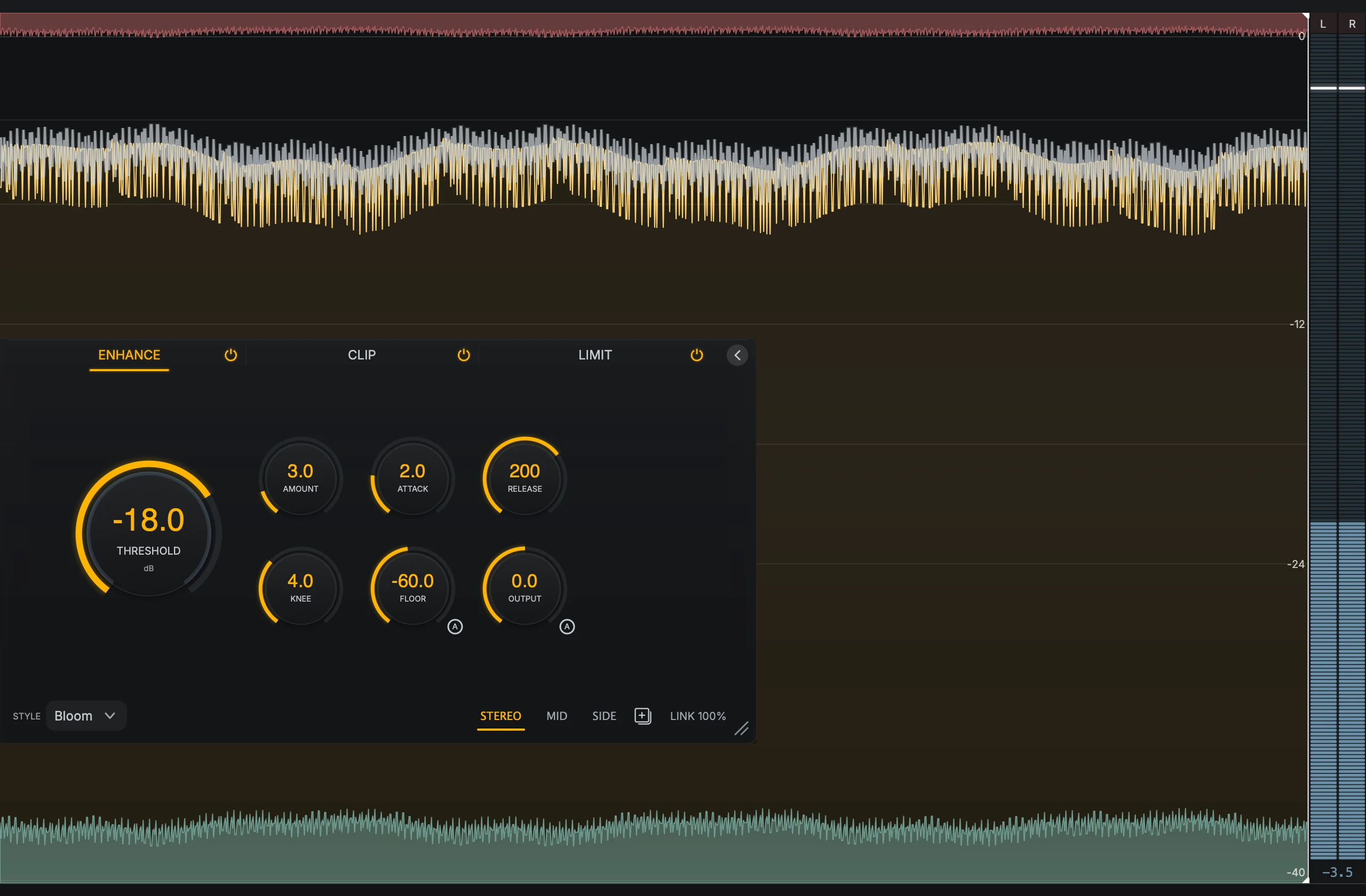
- Finished waveformThe level shape coming out of End Game.
- Stage overlaysLift from Enhance at the bottom, limiter gain reduction at the top.
- OUTThe left and right output peaks.
ALL shows the signal at the end of the chain with every overlay. Pair it with OUT when you are setting the finished level, so the output peaks sit right beside the result.
TAB with GAIN: one stage at work#
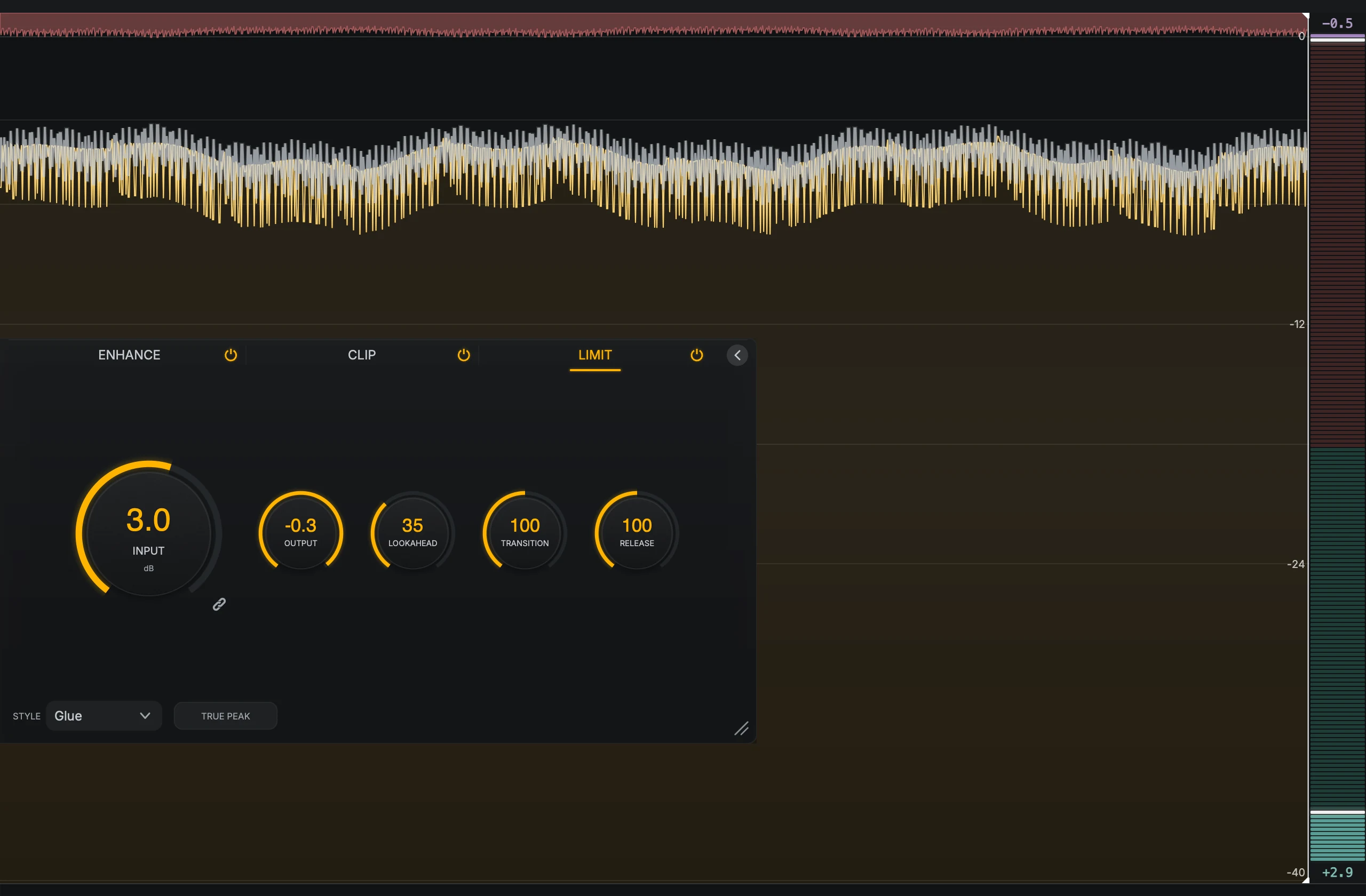
- Stage waveformHere the Limit stage: its gain reduction hangs from the top of the display.
- Stage controlsChange a control and watch the waveform and meter respond.
- GAINThe limiter's gain reduction right now, as a bar and a number.
TAB shows the signal at the output of the selected stage, and only that stage’s overlay. When the stage is in Mid-Side mode, it follows the lane you select. Pair it with GAIN when you are deciding how hard one stage should work.
STRIP with LUFS: the chain against a target#
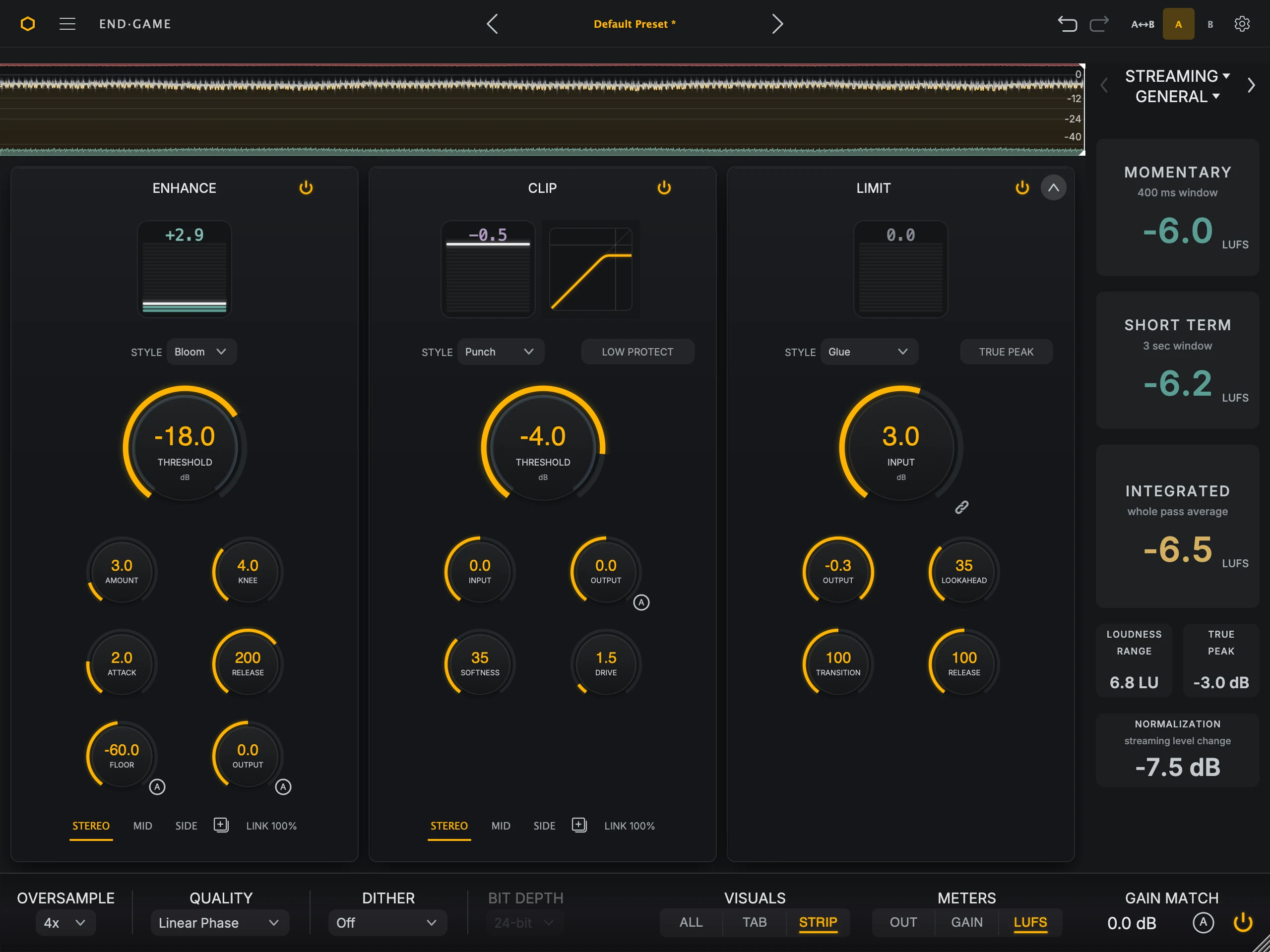
- Finished waveformA short view of the output while you work on the stages.
- Stage panelsSmall moves on several stages, each with its own gain meter.
- LUFSMomentary, short-term, and integrated loudness against your target.
STRIP keeps all three stages in reach under a shorter waveform. Pair it with LUFS when you are making small moves on several stages to land on a loudness target.
OUT: the final peaks#
OUT shows the left and right output peaks at the very end of the chain. The scale gives extra room to the top few decibels, where mastering decisions happen.

- Peak barsThe live left and right output peaks. The white line holds the most recent peak.
- ReadoutThe number under the bars is the output peak in dB.
Use it to set the final ceiling and check headroom: with Output at -1.0 dB, the peak hold lines should never pass -1. It does not tell you which stage is doing the work; GAIN does.
GAIN: what the stages are doing#
GAIN shows how much End Game is moving the level, in both directions at once.

- ReductionClip and Limit reduction grows down from the top. The number above the bar is the current reduction in dB.
- LiftEnhance lift grows up from the bottom. The number under the bar is the current lift in dB.
Reduction from Clip and Limit grows down from the top, and lift from Enhance grows up from the bottom. If the reduction reads several dB on every hit, the limiter is doing most of the work; let Clip take more of the peaks.
LUFS: loudness against a target#
LUFS measures loudness the way streaming services and broadcasters do, and compares it with a target you choose. It has two views of the same measurement. The large readout is the default.
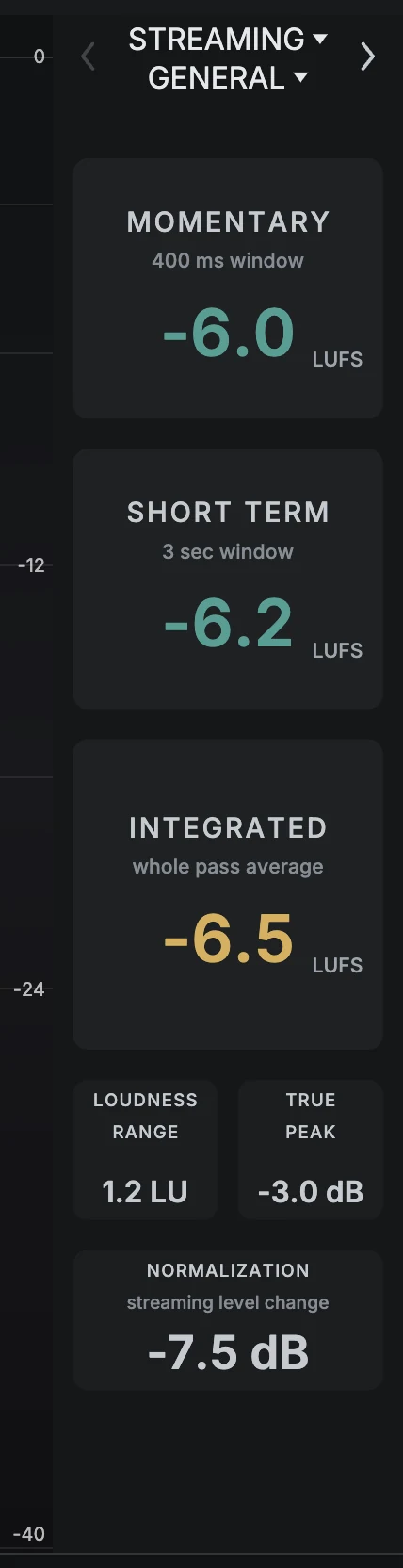
- View switchThe chevrons switch between large readouts and meter bars.
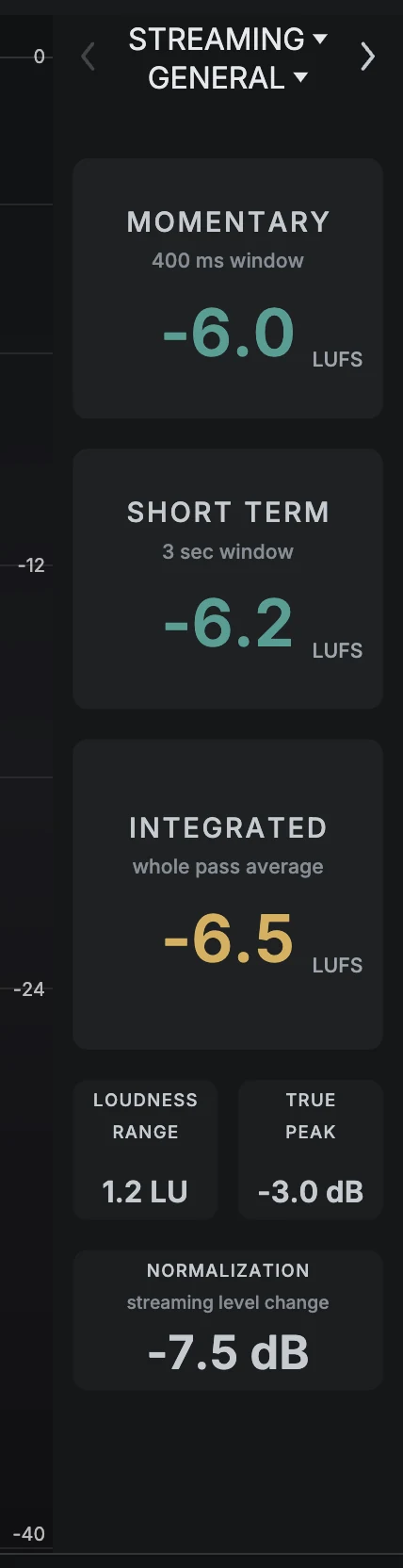
- Momentary, Short Term, and IntegratedThe three loudness values, each with its measurement window.
- Context valuesLoudness Range, True Peak, and Normalization (or Peak to Loudness Ratio on Vinyl).
Click the chevrons beside the target menus to switch views. The direction you cannot go is dimmed.
- Target and genrePick the delivery target, and a genre for Streaming, CD, or Vinyl.
- M, S, and I barsMomentary, short-term, and integrated loudness. The dashed line is the target.
- ReadoutsCurrent M, S, and I values, then NORM or PLR, LRA, and TP along the bottom.
Use the meter-bar view when you want to watch movement and the target zones at a glance, and the large readout when you want to read exact numbers.
Read the three values#
M (Momentary) measures the last 400 ms: the loudness of the moment.
S (Short Term) measures the last 3 seconds: the loudness of a phrase.
I (Integrated) is the gated average of the whole pass, the number most delivery targets quote. Silence below the gate does not drag it down.
In the bar view, each bar is green inside the ideal window around your target, amber when it is acceptable but drifting, and red outside. A dashed line marks the target. M and S get wider windows than I, because faster timescales naturally swing more.
Measure a full pass#
End Game measures whenever the host is playing, even if the LUFS meter is hidden or the plugin window is closed. Stopping playback clears the pass, so the next playback starts a fresh I and LRA. To measure a track, start playback from the beginning and let it play to the end.
Click a loudness readout to reset that measurement by hand. It stays empty until enough new audio fills its window.
Choose a target#
Choose the target that matches the release from the menu at the top of the LUFS meter. Hover the menu to read what the current target is for.
Target |
Use it for |
|---|---|
Streaming |
Music services, which usually normalize around the mid-teens LUFS. |
CD |
Hotter masters for physical release. |
Vinyl |
A less aggressive target that suits cutting. |
Club |
Loud, sustained playback on club and DJ systems. |
Loud |
Deliberately aggressive, heavily compressed references. |
EBU R128 and ATSC A/85 |
Regulated broadcast delivery. |
Podcast |
Spoken word. |
Custom |
Your own target, set in the settings overlay. |
For Streaming, CD, and Vinyl, a Genre menu appears beside the target: General, Pop, Rock / Metal, Hip-Hop / RB, Electronic, Acoustic / Folk, Jazz, or Classical. A genre moves the target and its green and amber windows toward how that style is usually mastered. General applies no genre lean. Each target remembers its own last genre.
Read the extra values#
NORM (Streaming only) is how much a streaming service would turn your master up or down to reach its -14 LUFS reference. A negative number means your master is louder than -14 and will be turned down by about that much. It is a guide only and changes nothing.
PLR (Vinyl only) is the peak-to-loudness ratio: true peak minus integrated loudness. A higher number means more dynamic range, which vinyl needs to cut cleanly. It reads green at 14 dB and above, amber from 8 to 14 dB, and red below 8 dB, where sibilance, inner-groove distortion, and tracking problems become a risk.
LRA (loudness range, in LU) is the spread between the quieter and louder parts of the pass. A very low value means the dynamics have been squeezed flat. Judge it after a full pass; short material does not give a useful range.
TP (true peak, in dBTP) is the inter-sample peak level. Each target has a true-peak ceiling, drawn on the scale. TP turns amber above that ceiling but at or below 0 dBFS, a delivery warning, and red only above 0 dBFS, where the signal is clipping.
Loudness and peaks are separate checks
Two masters can show the same peaks and very different loudness, and a good LUFS result does not mean the peaks are safe. Check I against your target and TP against the ceiling before you deliver.