Help
Activation and licensing#
Use this page to activate End Game on a computer, start a trial, activate a computer that is offline, or move a license to another computer. Every licensing action is in the menu at the left of the header.
Activate with your SoundHive account#
When End Game is not activated, it asks you to activate when it opens.
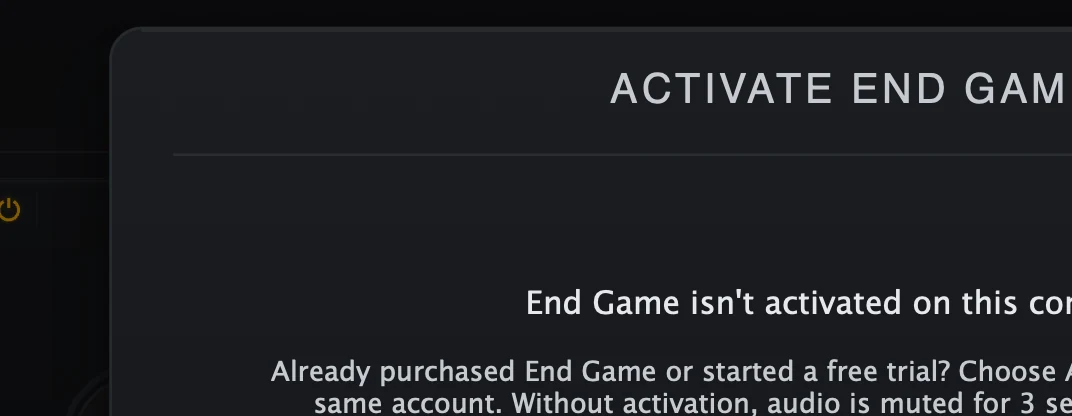
- Continue Without ActivatingKeeps End Game running, but the audio mutes for 3 seconds every 30 seconds.
- BuyOpens the End Game page on the SoundHive website.
- Start Free TrialStarts a trial on the SoundHive website. Come back and choose Activate afterward.
- ActivateSign in with the account you bought or started the trial with.
Choose Activate.
Keep Sign In to Activate selected and choose Sign In and Activate. Your browser opens the SoundHive website.
Sign in with the account you bought End Game or started the trial with, and approve this computer.
Go back to End Game. It finishes the activation by itself; there is nothing to paste or confirm.
While you do this, the dialog shows where you are: opening your browser, waiting for approval from the website, approved, or canceled. If the sign-in does not complete, choose Sign In and Activate again.
The other choices in the prompt:
Start Free Trial opens the SoundHive website to start a trial. The trial is created on the website, not in the plugin. Come back and choose Activate with the same account.
Buy opens the End Game page on the SoundHive website. After you buy, come back and choose Activate.
Continue Without Activating keeps End Game running for evaluation, but the audio is muted for 3 seconds every 30 seconds. This is not the trial.
End Game checks and renews its license in the background. A slow or missing connection never pauses your DAW, the plugin window, or the audio.
Activate a computer that is offline#
Use offline activation only for a computer that cannot complete the browser sign-in, such as a studio machine kept off the internet. Open it from Activate License… in the menu, then choose Offline Activation.
On the offline computer, enter your End Game license key.
Choose Generate Request, then Copy, and take the request to a computer that is online.
On the online computer, sign in to your SoundHive account and create the response from the request.
Take the response back to the offline computer, paste it into Offline Response, and choose Apply Response.
A response only works on the computer that made the request. Do not reuse a request or response on another computer, after a reinstall, or after an operating-system change; make a new request instead.
Check the license on this computer#
Choose License Status in the menu to see the state of this computer.
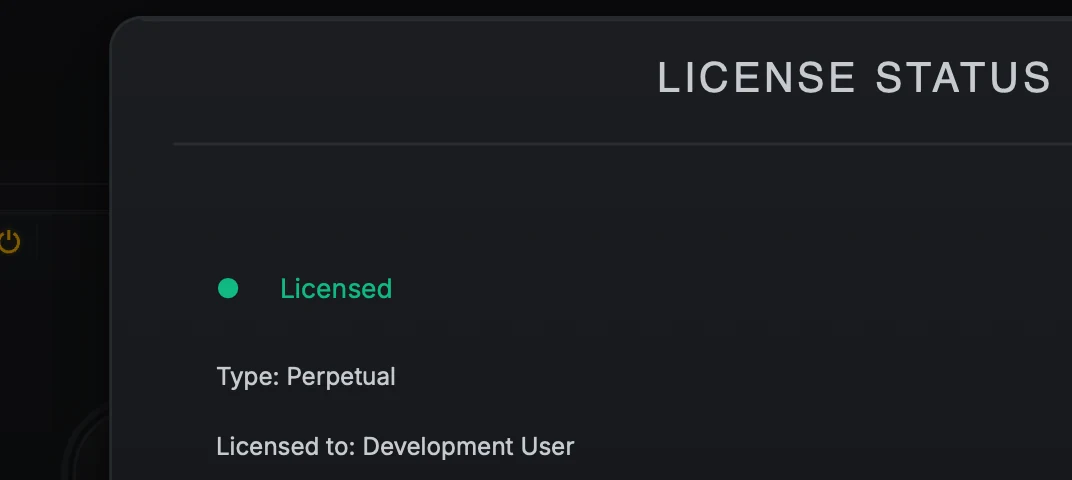
- StatusLicensed, trial, or not activated.
- DetailsLicense type, who it is licensed to, when this computer was activated, and how many machine slots are in use.
- DeactivateFrees this computer's slot so you can activate another one.
The panel shows whether End Game is licensed, in a trial, or not activated, with the license type, who it is licensed to, when this computer was activated, and how many machine slots are in use. The menu also shows the license state, including the days left in a trial or grace period.
Move a license to another computer#
Save your work in any session that uses End Game.
Choose License Status and check that this is the computer you want to free.
Choose Deactivate and confirm. End Game returns to the not-activated state on this computer, and its slot is free.
Activate End Game on the new computer.