Using Clip Joint
Settings and help#
This page helps you with the parts of Clip Joint that sit outside the sound: the menu, tooltips, how the waveform scrolls, and what to do when an update is available. For the settings bar along the bottom of the window, see Output and delivery.
Open the menu and settings#

- MenuAbout, licensing, tooltips, the manual, and the website.
- SettingsHow the waveform scope scrolls.
Two buttons in the presets bar open everything on this page.
The menu button, beside the logo on the left, opens:
About, which shows the version you are running.
Your license state, License Status, and the activation actions. Activation and licensing covers these.
Enable Tooltips, which turns every tooltip in Clip Joint on or off. Tooltips describe each knob, the settings-bar choices, each style in the Style menu, and the scroll options. Turn them off once you know the controls; the sound does not change.
User Manual, which opens this manual, and Visit Website.
The settings button, at the right end of the bar, opens the settings overlay described below.
Change how the waveform scrolls#
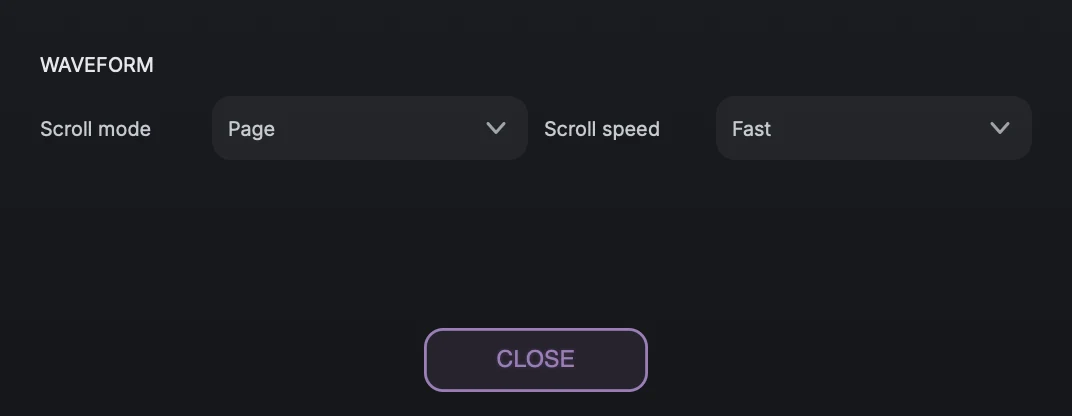
- Scroll modePage, Continuous, or Infinite.
- Scroll speedHow much time the scope shows. Dimmed in Infinite.
The settings overlay sets how the waveform scope moves. These are display choices only; they never change the audio.
Scroll mode has three options:
Option |
What you see |
Choose it when |
|---|---|---|
Page |
The trace fills the scope from left to right, then clears and starts a new page. |
You want to look at one phrase at a time. |
Continuous |
New audio enters on the right and older audio scrolls off the left. |
You want to watch the most recent few seconds as they pass. |
Infinite |
New audio enters on the right while the whole history so far is squeezed in to the left. |
You want to see the shape of a whole song. |
Scroll speed sets how much time the scope shows:
Speed |
Page |
Continuous |
|---|---|---|
Slow |
8 seconds |
30 seconds |
Medium |
4 seconds |
10 seconds |
Fast |
2 seconds |
3 seconds |
Infinite ignores the speed, so the control is dimmed while it is selected. Your speed comes back when you return to Page or Continuous.
Clip Joint remembers your choices for new instances, and each saved session restores the choices it was saved with.
Respond to an update#
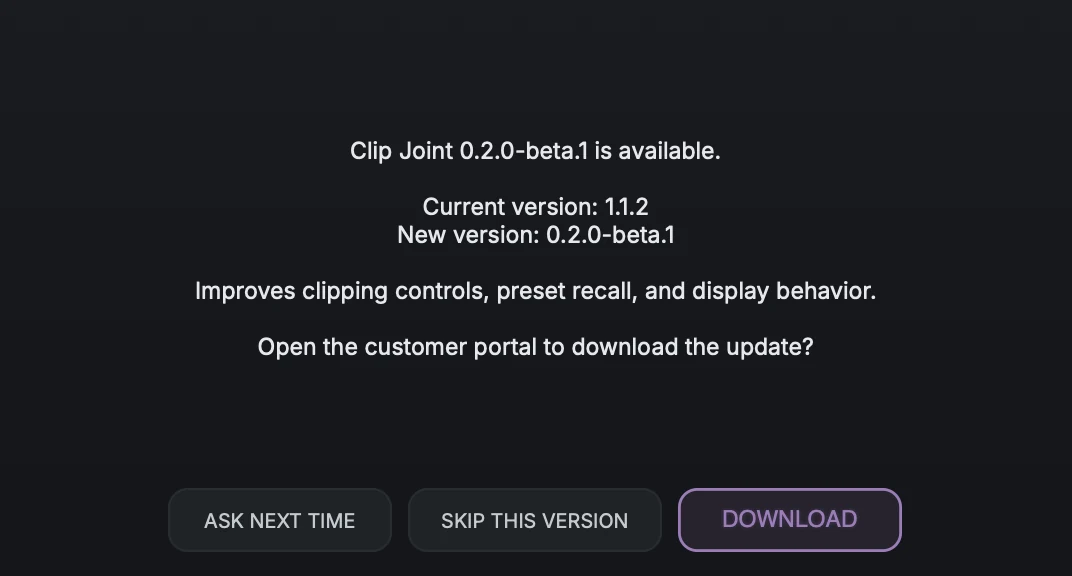
- VersionsThe version you are running and the new one, with a summary of what changed.
- Your choiceDownload opens the portal, Skip This Version hides this version, and Ask Next Time closes the dialog.
When Clip Joint finds a newer compatible release, it shows the version you are running, the new version, and a summary of what changed. The check never interrupts audio. If you are offline or no newer release exists, nothing appears.
Download opens the customer portal in your browser. Clip Joint never installs an update on its own.
Skip This Version stops this version being offered on this computer. A later version can still be offered.
Ask Next Time closes the dialog and offers the update again later.
Release builds offer only release versions. Beta builds can offer a newer beta or the release that follows it. With several Clip Joint instances open, the offer appears once.
Latency and bypass#
Clip Joint reports its exact latency to your DAW on every setting, so delay compensation keeps it in time. Latency changes with Oversample, the Linear Phase / Minimum Phase filter choice, and when Low Protect is on. Output and delivery covers the details.