Using Clip Joint
Presets and browser#
This page helps you find a starting point fast, compare two settings, and keep the ones you will use again. Step through presets from the presets bar, and open the browser when you want to search, organize, or save.
Step through presets from the presets bar#

- Preset arrowsLoad the previous or next preset straight away.
- Preset nameClick it to open the preset browser.
- A and BChoose which slot you hear and edit. The button beside them copies one slot to the other.
The arrows either side of the preset name load the previous or next preset straight away, so you can audition while the track plays. Click the preset name to open the preset menu (packs, Save, Save As…), and choose Browse All… to open the full browser. An asterisk after the name means you have changed the preset since it was loaded.
Each arrow click replaces the current settings. If the current sound matters, save it or copy it to the other comparison slot before you start stepping.
Compare two settings with A and B#
A and B are two comparison slots. The one that is lit is the one you hear and edit. Click the other to switch. The A↔B button beside them opens Copy A → B and Copy B → A.
A typical comparison:
With a sound you like in A, choose Copy A → B.
Switch to B and push it further, for example more Density or a different style.
Switch between A and B while the track plays. Use Gain Match on each so you compare the sound and not the loudness.
If B wins, choose Copy B → A, then save it as a preset.
Treat B as a scratch slot for quick experiments. Save a preset for any decision you need to keep.
Find presets in the browser#
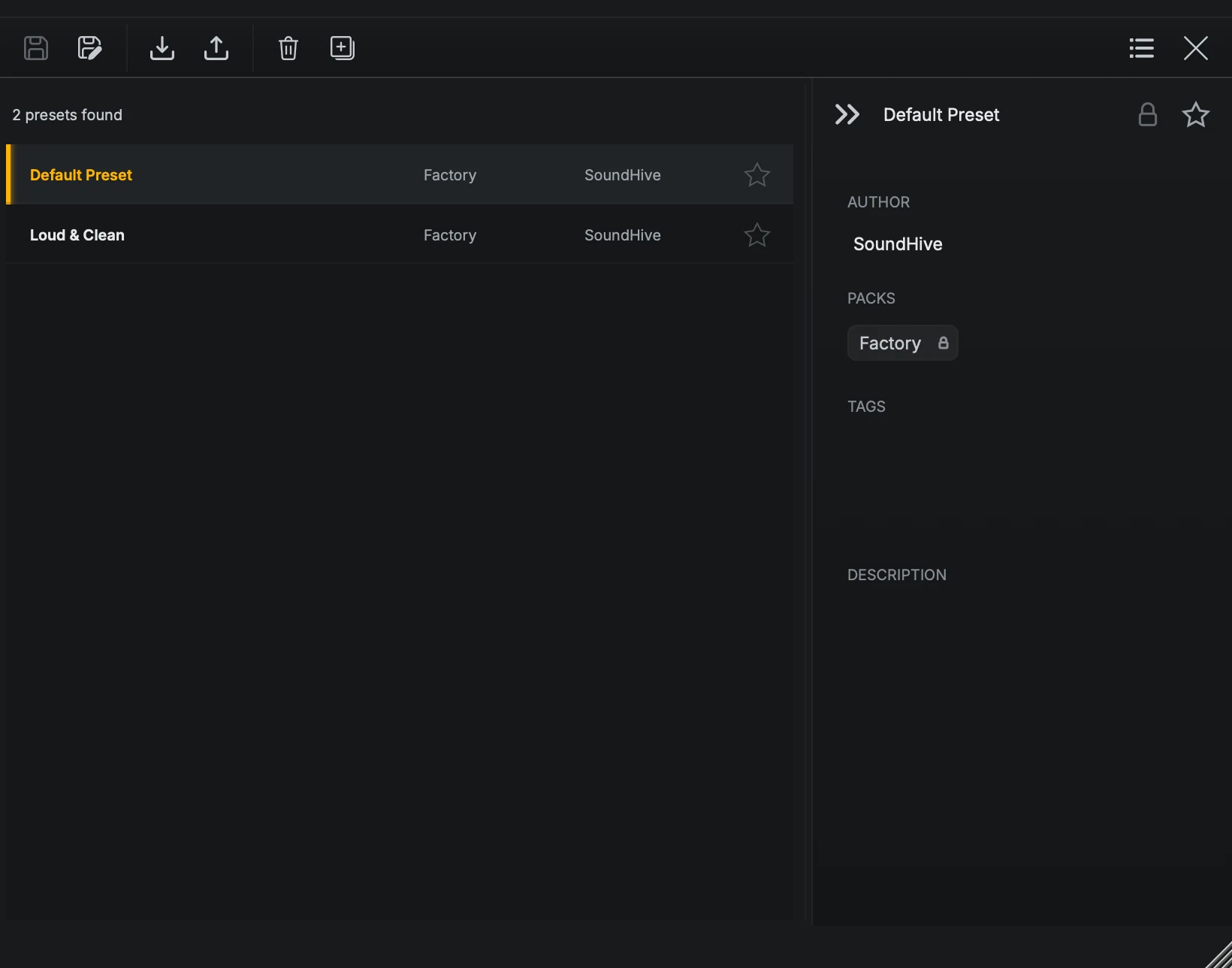
- ResultsEvery preset that matches the current filters. Step down the list to audition.
- Favorite starClick to add the preset to your favorites.
- DetailsAuthor, packs, tags, and description. Editable on your own presets.
At the default window size the browser has two columns: the results list, and a details panel with the selected preset’s author, packs, tags, and description. Those details are editable on your own presets and read-only on factory presets. Click the star on a row to make a preset a favorite.
Make the plugin window wider and a third column appears on the left, with the search field, the Packs and Tags switch, and Show All or Favorites Only. The double chevron beside it collapses that column again.
Each way of organizing has its own job:
Packs are broad collections, such as the factory packs or a set of your own presets for one project.
Tags are labels you can search across packs, such as a genre, a source, or a delivery target.
Favorites are the short list you reach for in real sessions, whatever their pack or tags.
Save and move presets#

- Save and Save AsSave updates your current preset. Save As stores a new one, and is the only way to save a changed factory preset.
- Import and ExportBring in a preset file and load it, or write the selected preset to a file.
- Delete and DuplicateRemove the selected user preset, or copy it to a new one.
- View and closeSwitch between list, grid, and details views, or close the browser.
The toolbar at the top of the browser holds the save and file actions:
Save updates the current user preset. It is dimmed until you change something, and it does not apply to factory presets.
Save As stores the current sound as a new preset. If the name already exists, Clip Joint asks before replacing it; canceling leaves both the existing preset and your current settings unchanged.
Duplicate copies the selected preset to a new user preset with a name such as Preset Copy.
Import brings in a preset file and loads it, so you hear it straight away.
Export writes the selected preset to a file you can move to another computer or keep as a backup.
Delete removes the selected user preset. Factory presets cannot be deleted.
The list icon at the right switches the results between list, grid, and details views, and the cross closes the browser.
Factory presets cannot be overwritten. Use Save As or Duplicate to make your own version of one.
Save with a purpose
Save a preset when you can say in one sentence what it is for, such as “loud pop master” or “drum bus with the kick protected”. Name it for that job so you can find it later.
Factory presets#
Clip Joint installs 21 read-only factory presets in four packs. Each is a starting point for one job: load it, play the track, and adjust the one or two controls its description names.
Pack |
Presets |
|---|---|
Master |
Loud & Clean, Transparent Master, Streaming Loud, Punch Master, Warm Master, Maximum Loud, Mid-Side Master, Mid Focus (Mid-Side) |
Bus |
Drum Bus, Bass Clip, Mix Bus Glue, Parallel Smash, Snare Slam, Kick Weight |
Character |
Warm Drive, Hard Slam, Analog Color, Distort |
Utility |
Transparent Peak Control, Wide Clean (Mid-Side), Brick Wall Safety |
To try what Clip Joint is for in one click, load Loud & Clean: Punch with Density well up and Low Protect on. It also sits in the Factory pack. Pull Density back if it is more than the track wants.
Search the low-protect tag for the four presets that use Low Protect, and the mid-side tag for the three that clip in Mid/Side. Parallel Smash, Hard Slam, Distort, Maximum Loud, and Brick Wall Safety use the Hard style, so Drive, Softness, Density, and Tilt have no effect in them.
Default Preset leaves every control at its default. Every new instance loads it.
What each instance remembers#
Each Clip Joint instance keeps its preset name and whether you have changed it, through closing the window, bypassing, reopening the session, and copying the instance. It also keeps whether the scope is hidden, the scroll mode and speed, the Mid/Side lane you were editing, the window size, and the Gain Match trim. None of these are stored in presets.