Using Clip Joint
Clipping#
This page helps you decide how the clipper should sound and how hard it should work. It covers the three styles, the controls in the clip bar, and when to clip in Stereo or Mid/Side. For oversampling, dither, and level matching, see Output and delivery.
Choose a style#
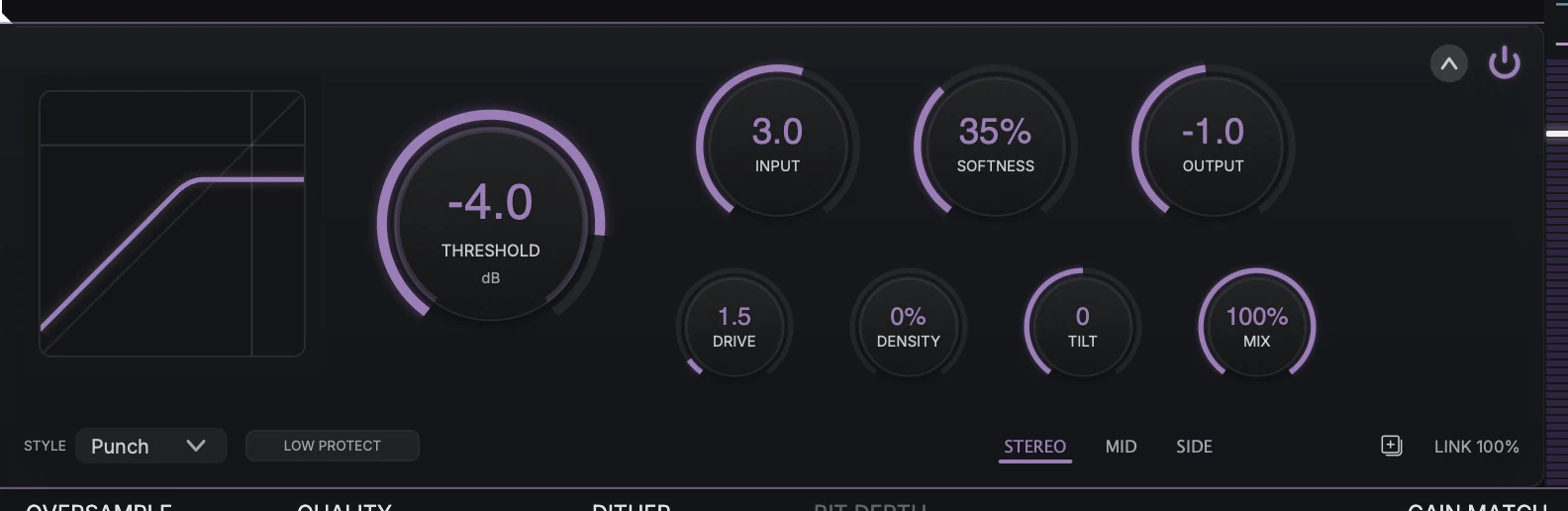
- StyleHard cuts peaks flat, Punch keeps the attack of drums, and Smooth is the hardest to hear.
- CurveInput level runs left to right and output level bottom to top. The flat top is the ceiling.
The Style menu sets the character of the clipping. The curve beside the Threshold knob redraws when you switch, so you can see how sharply each style turns over at the ceiling. Hover a style in the open menu to read a short description before you choose it. Switching during playback does not click, so audition all three on the loudest part of the track.
Style |
What you hear |
Choose it when |
|---|---|---|
Hard |
Peaks cut off flat at the ceiling, with the most obvious edge. |
You want the clipping to be heard, or you want the plainest possible peak control. |
Punch |
Peaks shaved while the attack of drums stays intact. This is the default. |
The material is rhythm-led and the hits need to keep hitting. |
Smooth |
A gentle approach to the ceiling that is the hardest to hear. |
The mix already sounds right and you only want the loudest moments rounded off. |
Hard is a plain hard clip. Drive, Softness, Density, and Tilt are dimmed and do nothing in Hard, even if you set them in another style first. Their values come back when you switch to Punch or Smooth.
Set the ceiling and how hard you hit it#
Threshold, the large knob in the clip bar, is the ceiling. The clipper flattens anything that would go above it. Lower it and the clipper starts working earlier and on more of the track. In Punch and Smooth, the clipper begins easing peaks down a little below the mark rather than exactly on it.
The outer ring on the Threshold knob shows the level going into the clipper. The part of the ring that passes the knob’s value turns a brighter purple: that is the part being clipped.
Input sets how hard you hit the ceiling. Raise it and more of the track reaches the ceiling, so you hear more clipping and more density while the ceiling stays where it is. Lower the Threshold when you want the ceiling itself to come down; raise Input when you want to drive the same ceiling harder.
Output sets the level after the clipper. Use it to set the level you deliver by hand. To compare at matched loudness, use Gain Match instead (see Output and delivery).
Push level with Density#
Density is where most of the loudness comes from in Punch and Smooth. It squeezes the top few dB of the track toward the ceiling and lifts everything underneath, up to 12 dB at full, so far more of the music rides against the clipper. The track gets louder and denser while the ceiling stays put.
Peaks still go further past the ceiling as you raise it, so you do hear more clipping, but less than if you added the same level with Input. Watch the curve bend as you turn it up. Move it in small steps and stop as soon as the track sounds full enough.
Keep the low end clean with Low Protect#
Low Protect keeps your bass out of the clipper. It splits the signal around 100 Hz, sends the low band around the clipper, and adds it back afterwards. The kick and sub keep their weight and movement while everything above them gets clipped. The protected lows still follow Input and Output. It is off by default.
Turn it on when pushing Density or Input makes the low end blur, crackle, or lose its punch. You should hear the bottom of the mix stay steady while the rest gets louder.
Low Protect adds 10 ms of latency
The delay is the same at every sample rate and adds to any oversampling delay. Clip Joint reports the total to your DAW, so the track stays in time with the rest of the session. You may feel it when you monitor a live performance through the plugin.
Shape the clipping#
These three controls change how the clipping sounds once the level is right. None of them moves the ceiling.
Drive adds warmth and body: a round, even-harmonic thickening like a tube or transformer, with a little extra presence and a slightly softer top. It acts most on the loud parts of the track. At 0 dB it is off and leaves the signal untouched.
Softness sets how suddenly the clipper takes hold. Low settings grab right at the ceiling and sound firmer and more obvious. High settings start easing peaks down well before the ceiling and sound rounder and harder to spot. Even at 0%, Punch and Smooth keep a gentle bend; only Hard has a sharp corner. Smooth is rounder than Punch at the same setting.
Tilt decides which part of the mix takes the most clipping. Turn it toward +100 and the low end goes into the clipper first, so the kick and bass take the clipping and the top stays clearer. Turn it toward -100 and the snare and cymbals take it instead. 0 is neutral. Tilt is not an EQ: it is applied going into the clipper and taken back out afterwards, so it changes what gets clipped rather than the overall tone.
Blend with Mix for parallel clipping#
Mix blends the clipped signal with the unclipped signal. At 100% you hear the clipper alone. Pull it back and the original dynamics come through underneath, so you keep some of the life of the performance while the clipped signal adds density.
The two signals stay exactly in time at every setting, so Mix never adds phasing or comb filtering. The unclipped signal is taken before Input, so Input and Output change only the clipped part.
Clip in Stereo or Mid/Side#
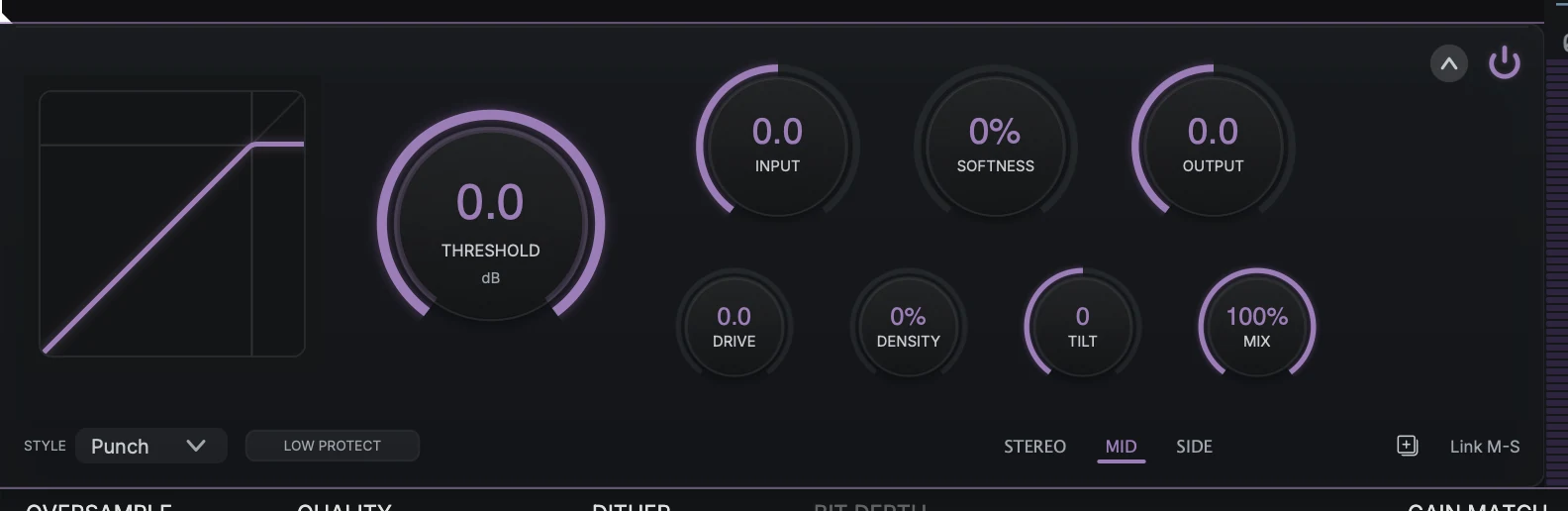
- Lane tabsStereo clips left and right together. Mid and Side clip the center and the sides separately.
- CopyCopy the six lane settings from this lane to another one.
- Link M-SWhen on, a knob move on one lane moves the other by the same amount.
The lane tabs at the bottom right of the clip bar choose how the clipper sees the signal.
STEREO clips left and right together. In this mode the Link control sets what happens when one side peaks harder than the other. At 100%, the default, both channels are turned down together and the stereo image stays still. Lower it and each side clips on its own, which can sound a little louder and more open but can pull the image sideways on big peaks.
MID and SIDE clip the center and the sides separately. Click a tab to edit that lane. Each lane has its own Input, Threshold, Drive, Tilt, Softness, and Output. Style, Density, Low Protect, and Mix are shared by both lanes. The scope and the gain-reduction meter follow the lane you are editing.
A common use: drive the center hard for level and leave the sides lighter, so the mix gets louder without the stereo image narrowing. A firmer MID (low Softness) with a softer SIDE keeps the center tight while wide peaks round off gently.
Link M-S replaces Link when you are in MID or SIDE. Turn it on and a knob move on one lane moves the other lane by the same amount, keeping any offset you already set between them. It follows your own edits only. Host automation on one lane is never copied to the other.
The copy button beside it copies the six lane settings from the lane you are on to another lane. From STEREO, choose Mid, Side, or Mid + Side. From MID or SIDE, choose either of the other two. The shared controls are not touched.
To look up the range and default of every control, see Parameters.