Start here
Getting started#
This page takes you from inserting Clip Joint to a first pass you can trust. Work through the steps in order with the track playing. Each step says what you should hear and see when it is working.
1. Insert Clip Joint#
Put Clip Joint on the channel, bus, or master you want louder. On a master, place it last, or just before a limiter if you use one. A new instance loads Default Preset, which leaves the sound untouched until you turn something.
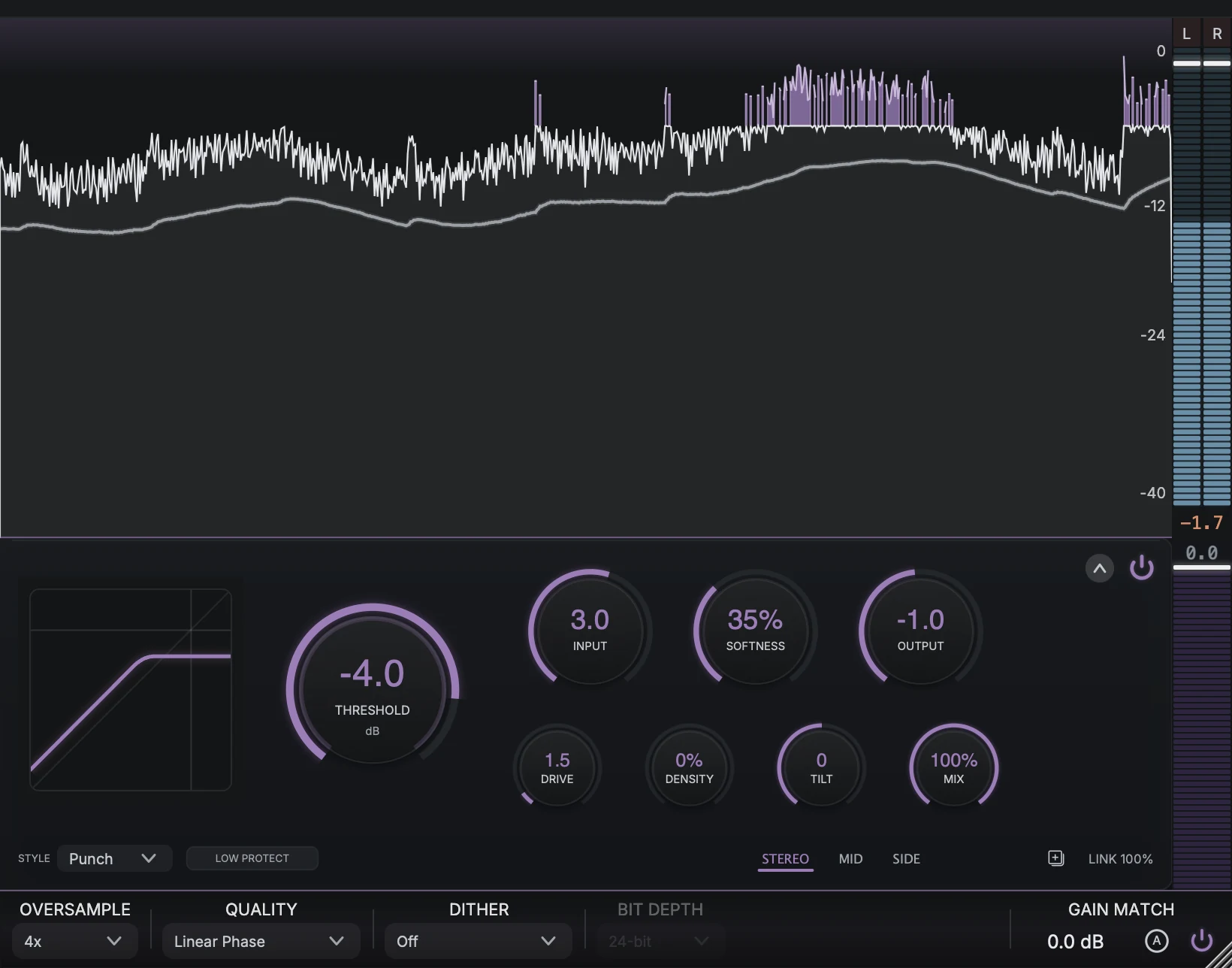
Press play. The waveform scope fills the top of the window and shows what is leaving the clipper. The column on the right shows the output peaks on top and how much the clipper is taking off underneath. Interface overview walks through each region.
2. Choose a style#
Open the Style menu at the bottom left of the clip bar and pick Punch to begin. It keeps the attack of drums while the level comes up, which suits most material. Come back later and try Smooth for gentler clipping or Hard for an obvious, flat edge. Clipping compares all three.
3. Set the ceiling and drive into it#
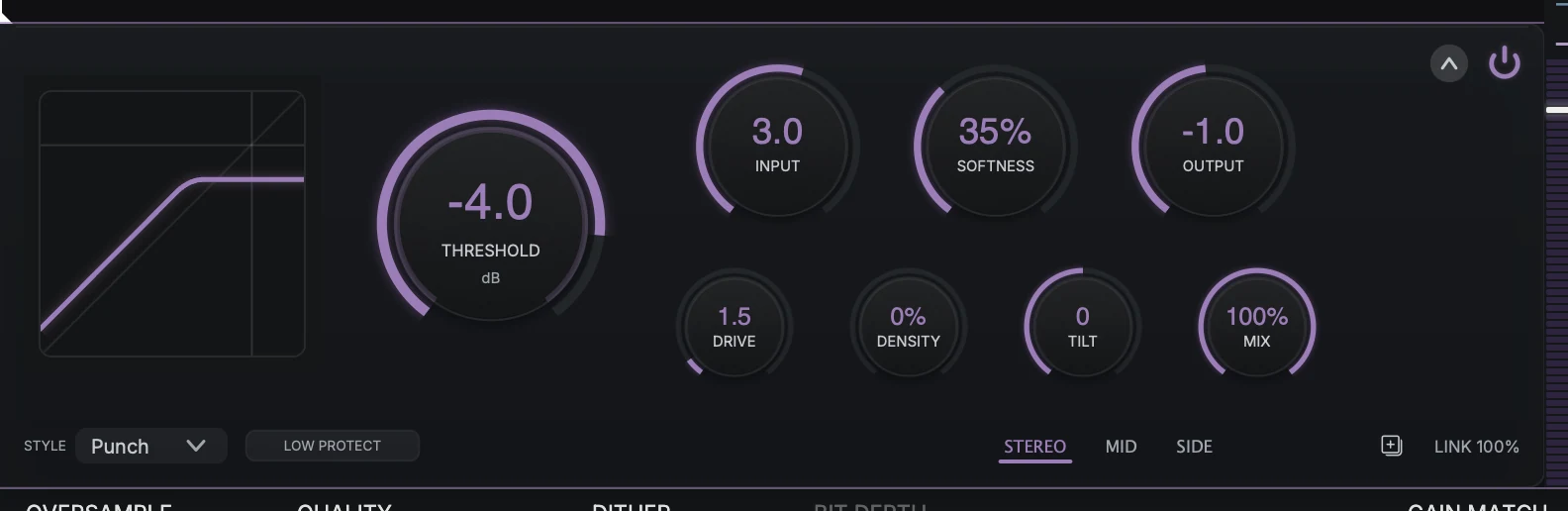
- ThresholdSet the ceiling a decibel or two below your loudest peaks. The outer ring shows the level arriving at the clipper.
- InputRaise it until the loudest hits reach the ceiling and purple caps appear in the scope.
- DensityTurn it up slowly for level. The curve on the left bends as it climbs.
- Low ProtectTurn it on to keep the kick and bass out of the clipper. It adds 10 ms of latency.
Set Threshold a decibel or two below your loudest peaks. This is the ceiling: the clipper flattens anything that would go above it. Then raise Input until the loudest hits reach that ceiling.
When it is working, purple caps appear on top of the loudest peaks in the scope, and the purple gain-reduction meter in the right column starts to move on the hits. The track should sound firmer, not distorted. If kicks and snares start to flatten or crackle, lower Input until they come back.
4. Push level with Density#
Turn Density up slowly. It lifts the body of the track toward the ceiling, up to 12 dB at full, so the whole track gets louder while the peaks stay where Threshold put them. Watch the curve beside the Threshold knob bend as you raise it.
You should hear a fuller, louder track with the same ceiling. It is a strong control, so stop as soon as the track sounds dense enough. It works in Punch and Smooth; it is dimmed in Hard.
5. Keep the low end out of the clipper#
Click Low Protect next to the Style menu. It routes the lows around the clipper and adds them back afterwards, so the kick and bass keep their weight while everything above them gets louder. You should hear the bottom end stop crumbling as you push.
Low Protect adds latency
Low Protect adds 10 ms of latency. Clip Joint reports it to your DAW, so the track stays in time, but you may feel the delay when you play through it live.
6. Compare at the same loudness#
Louder almost always sounds better, so compare at matched level before you decide. In the settings bar at the bottom, click the Gain Match capture button while the track plays. After about three seconds it sets a trim that brings Clip Joint back to the loudness of its input. Now switch your DAW’s bypass for Clip Joint on and off. Use the DAW’s bypass for this, not the power button on the clip bar: the trim stays in the signal while only the clipper is off.
If the processed version still sounds better at the same loudness, the clipping is helping. Turn Gain Match off with its power button before you bounce, because the trim is part of the output. Output and delivery explains why.
7. Shape the character#
Once the level is right, three controls change how the clipping sounds:
Drive adds warmth and body without moving the ceiling.
Softness makes the clipper take hold more gently.
Tilt chooses whether the kick or the snare takes the most clipping.
Clipping explains each one. When you have a sound you like, save it as a preset from the preset browser.
Next steps#
Interface overview walks the window region by region.
Clipping explains the styles and what each control does to the sound.
Output and delivery covers oversampling, dither, and matched-loudness comparisons.
Presets and browser covers saving and comparing your settings.