Start here
Interface overview#
This page shows you where to look while you work. Clip Joint is one window: a presets bar on top, a large waveform scope, the clip bar with every clipper control, a settings bar along the bottom, and a meter column down the right edge.
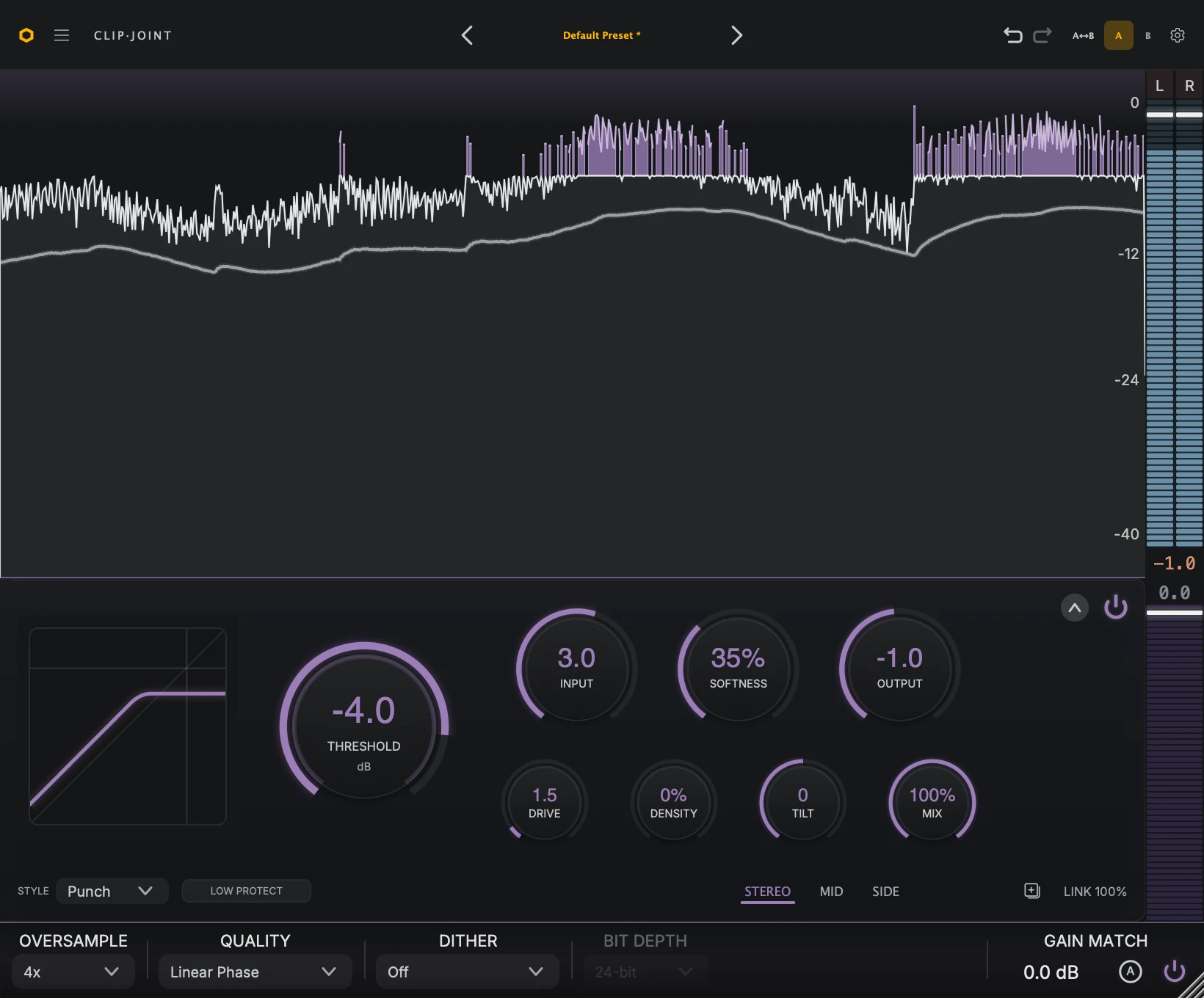
- Presets barPresets, A and B comparison, undo and redo, the menu, and settings.
- Waveform scopeThe clipper output against a dB scale. Purple caps show where level was taken off.
- Clip barEvery control that shapes the clipping, led by the large Threshold knob.
- Meter columnOutput peaks on top, and how much the clipper is taking off underneath.
- Settings barOversampling, dither, and bit depth, with Gain Match at the right end.
The window opens at 820 × 680. Drag the corner to make it larger, up to twice that size; it keeps its shape as it grows.
Presets bar#

- MenuAbout, licensing, the tooltip switch, the manual, and the website.
- Preset name and arrowsStep to the previous or next preset, or click the name to open the browser.
- Undo and redoStep back or forward through your recent edits.
- A and BSwitch between two comparison slots, or copy one to the other.
- SettingsOpen the settings overlay for how the waveform scrolls.
The bar along the top moves you between sounds. It holds the menu, the preset name and arrows, undo and redo, the A and B comparison slots, and the settings button. Nothing here changes the current sound until you load a preset or switch slots. Presets and browser explains each action, and Settings and help covers the menu and settings.
Waveform scope#
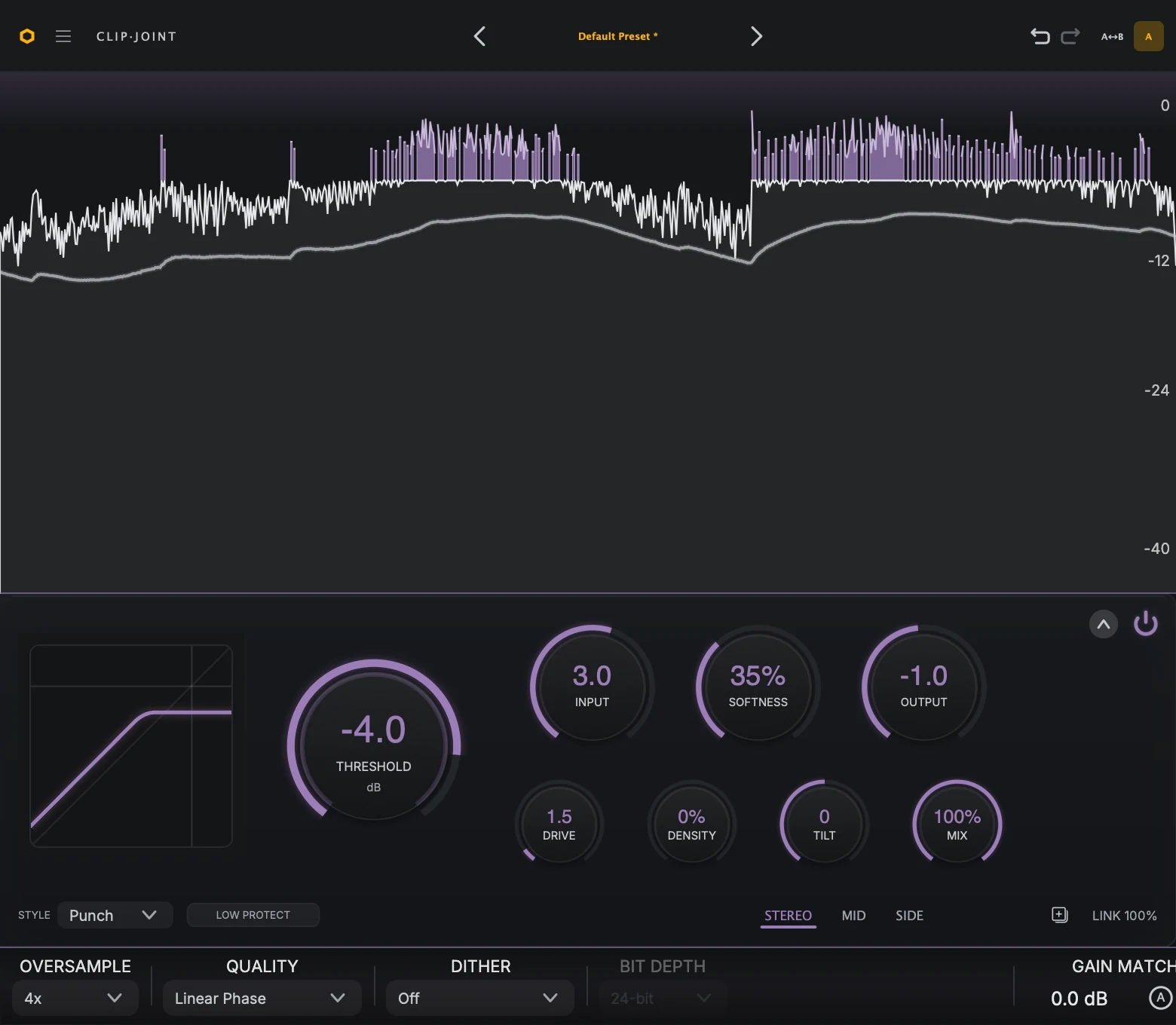
- Output traceWhere the trace runs flat along the top, the clipper is holding that part of the track at the ceiling.
- Clipped capsEach purple cap shows how much level came off that peak. Taller caps mean harder clipping.
The scope shows the clipper’s output as it scrolls past. Use it to see where the clipper is working.
The scale on the right edge runs from
0dB at the top down to-40dB. More marks appear as you make the window taller.Purple caps sit on top of the trace wherever the clipper took level off. A taller cap means that peak was clipped harder. A track that is clipping usefully shows short caps on the loudest hits, not a solid purple band along the top.
The scope’s
0dB line lines up with the top of the output meter, so the waveform and the meter share one scale.In Mid/Side, the scope shows the lane you are editing. In Stereo, it shows the full output.
To change how the scope scrolls, see Settings and help.
Hide the scope#
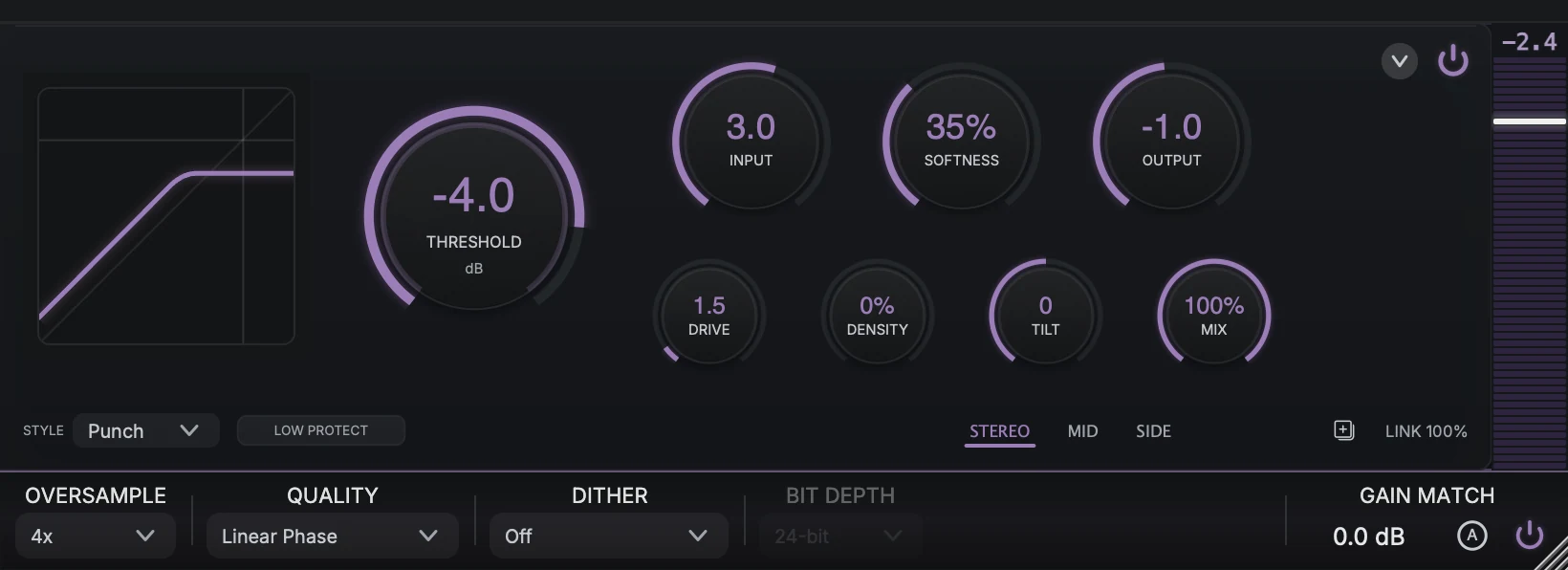
The chevron at the top right of the clip bar, beside the power button, hides the scope. The window shrinks to the presets bar, the clip bar, and the settings bar, and every control stays where it was. Click the chevron again to bring the scope back. Use the compact view when you are working by ear and want the screen space back.
Clip bar#
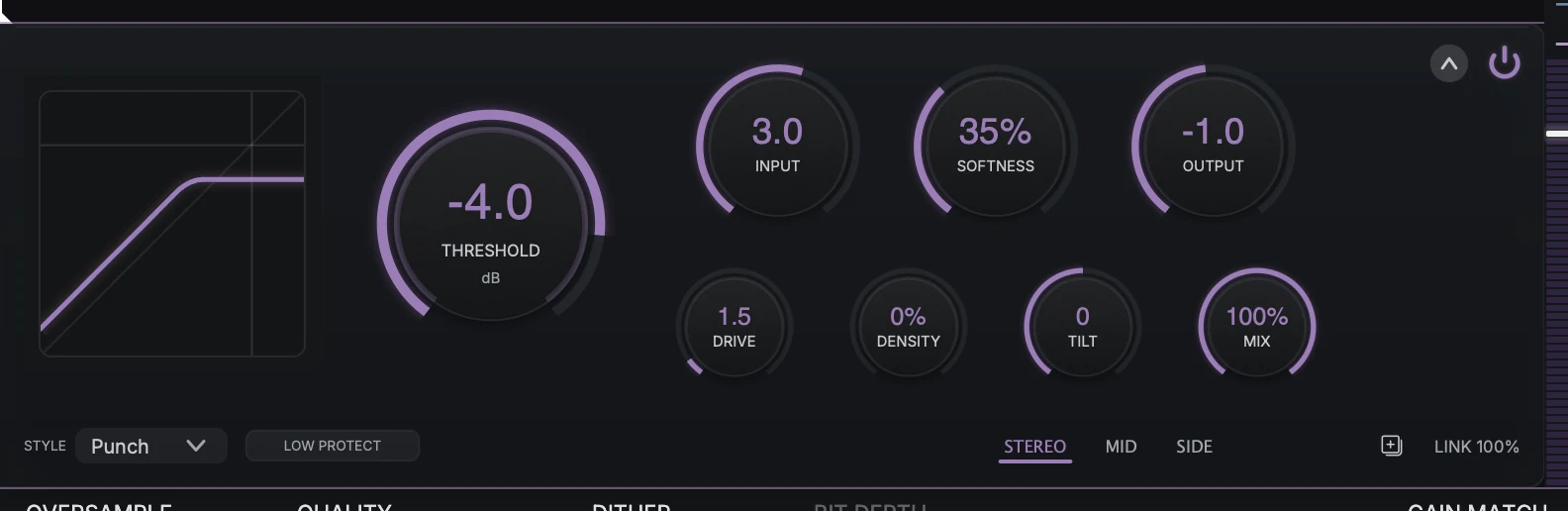
- CurveThe clipping shape from the current style and settings.
- ThresholdThe ceiling. The outer ring shows the level going in.
- Top rowInput, Softness, and Output.
- Bottom rowDrive, Density, Tilt, and Mix.
- Style and Low ProtectChoose Hard, Punch, or Smooth, and keep the lows out of the clipper.
- Lanes and LinkStereo or Mid/Side, the lane copy button, and Link.
- Chevron and powerHide the scope, or turn the clipper off to hear the track without it.
The clip bar holds every control that shapes the clipping.
On the left, the curve shows the clipping shape that the current style, Threshold, Softness, and Density produce.
Beside it, the large Threshold knob sets the ceiling. Its outer ring shows the level going into the clipper.
The top row holds Input, Softness, and Output. The bottom row holds Drive, Density, Tilt, and Mix.
Along the bottom left sit the Style menu and the Low Protect button. In a narrow window, the button reads LP.
Along the bottom right sit the STEREO, MID, and SIDE lane tabs, the lane copy button, and Link (or Link M-S in Mid/Side).
At the top right, the power button turns the clipper off so you can hear the track without it, and the chevron hides the scope.
Clipping explains what each control does to the sound.
Working with controls#
Type a value. Double-click a knob, type the value, and press Enter or click elsewhere in the plugin. Press Esc to cancel.
Reset to default. Option-click on macOS or Alt-click on Windows.
Fine adjustment. Hold Shift while dragging to move in steps a tenth the size. Press or release Shift during a drag without a jump in value.
Nudge. Turn the mouse wheel over a control.
Step. Press Tab to focus a control, then use the arrow keys.
The Link slider and Gain Match readout also support Shift-drag, the mouse wheel, and arrow keys.
Settings bar#

The bar along the bottom holds Oversample, Quality, Dither, and Bit Depth, and, past a divider at the right end, Gain Match. These set processing quality, export preparation, and level matching rather than the sound of the clipping. Output and delivery explains each one.
Meter column#

The narrow column at the right edge of the window answers two questions: where the output peaks are landing, and how hard the clipper is working.
The upper part lines up with the scope and shows the left and right output peaks of the clipper. It reads before any Gain Match trim.
The L and R boxes at the top are clip indicators. Each turns red and stays red when that channel goes over 0 dBFS. Click one to clear it, or hold Option (macOS) or Alt (Windows) while you click to clear both.
The purple lower part lines up with the clip bar and shows how much level the clipper is taking off. The more it reads, the harder the clipper is working. In Mid/Side it follows the lane you are editing.
When the scope is hidden, the output meter hides too and the gain-reduction meter fills the column.