Help
Activation and licensing#
This page helps you activate Clip Joint on a computer, check its license, and move the license to another computer. Most people need only the first section.
Activate in your browser#
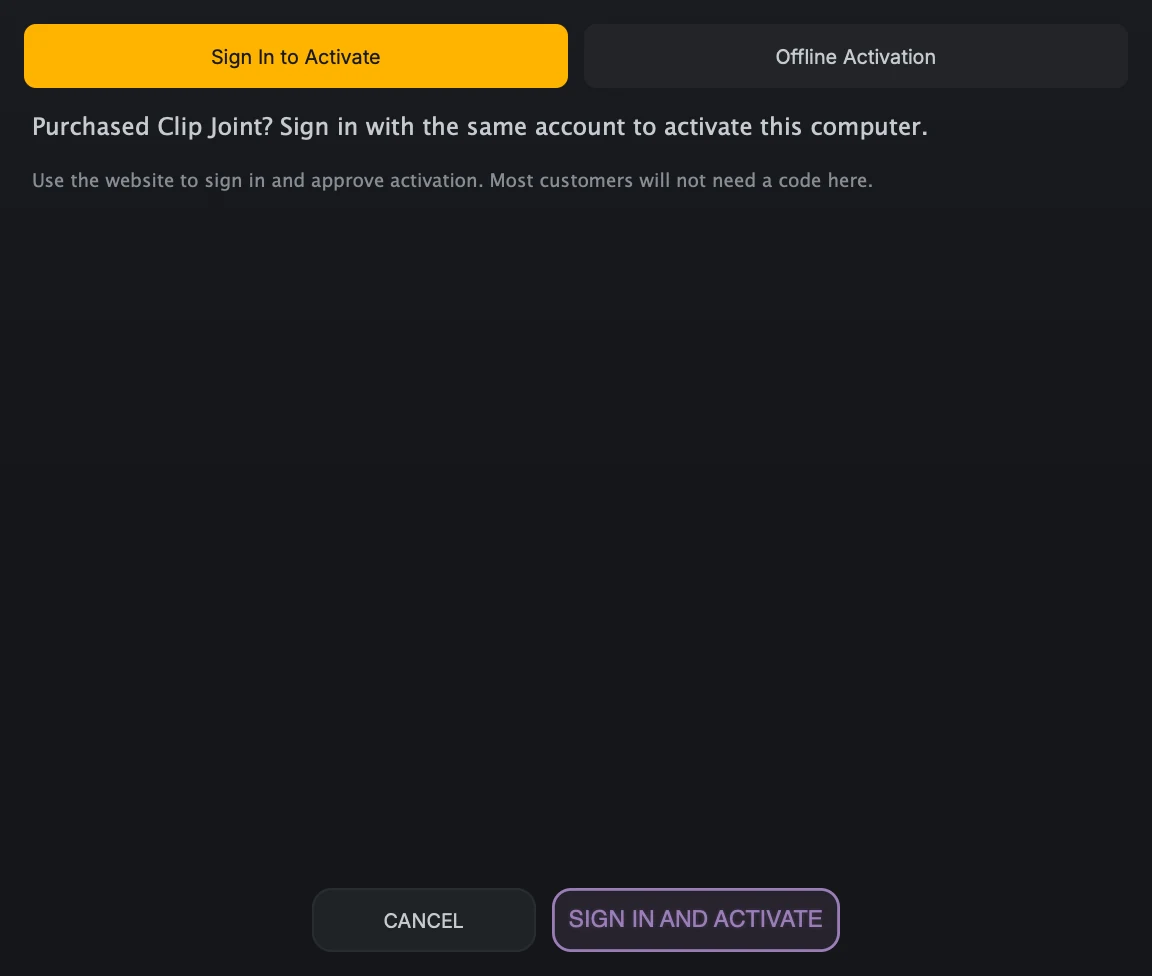
- Sign In to ActivateStart here. Your browser opens so you can sign in and approve this computer.
- Offline ActivationOnly for a computer that cannot reach the website. It swaps in the license key, request, and response fields.
- ProgressTells you what to do next and what Clip Joint is waiting for.
When you first open Clip Joint, a message offers three choices:
Activate opens the activation dialog.
Buy opens the SoundHive store. Clip Joint is pay what you want: you set the price, down to nothing. After checkout, come back and choose Activate.
Continue Without Activating lets you try Clip Joint first. Until you activate, the audio is muted for 3 seconds every 30 seconds.
You can also open the dialog at any time with Activate License… in the menu.
To activate:
Keep Sign In to Activate selected and start the sign-in. Your browser opens the SoundHive website.
Sign in with the account you used to buy Clip Joint, and approve this computer.
Return to Clip Joint. It finishes the activation on its own; there is nothing to paste or confirm.
The dialog tells you which stage you are at: waiting to open the browser, waiting for your approval, applying the approval, or denied, canceled, or timed out. If it times out, start again.
License states#
The menu and License Status show one of these states:
Not Activated: Clip Joint is installed, but this computer has no license. Audio mutes briefly every 30 seconds.
Licensed: this computer is fully activated.
Grace Period: Clip Joint could not recheck the license online, so it keeps working for a limited number of days. The menu shows the days left. Reconnect to the internet and reopen the plugin to clear it.
Clock Tampering Detected: the computer’s clock changed in a way the license check cannot trust, and Clip Joint outputs silence. Set the clock to the correct time, reconnect, and reopen the plugin. If the state stays, contact support.
Activate a computer that is offline#
Use offline activation only when the computer with Clip Joint cannot complete the browser sign-in, for example a studio machine kept off the internet. Choose Offline Activation at the top of the activation dialog.
On the offline computer, enter your license key and create an activation request.
Take the request to a computer that can reach the SoundHive website, and create a response there.
Bring the response back to the offline computer and paste it into Clip Joint.
A request and its response belong to one computer. They will not activate a different computer, or the same computer after a reinstall of the operating system.
Check status and move a license#
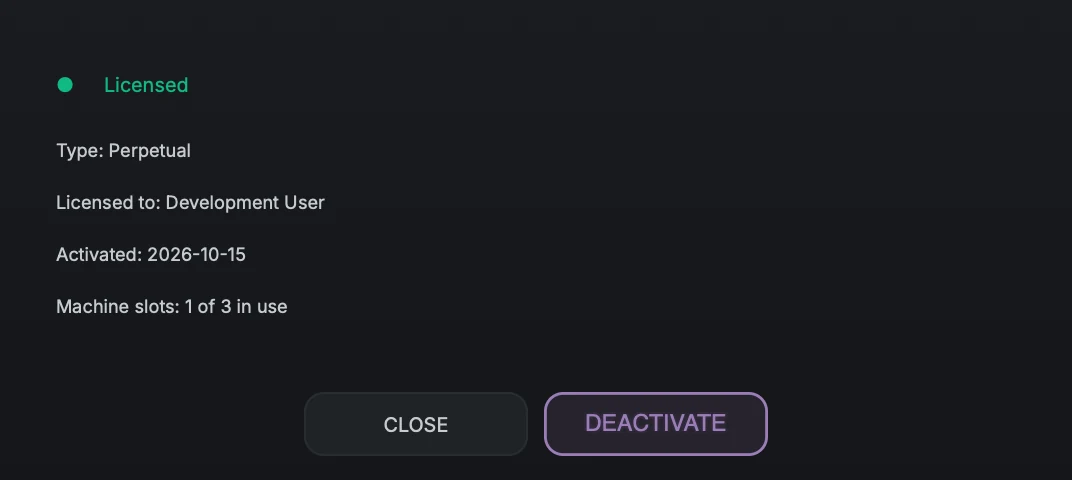
- StatusLicensed or Not Activated on this computer.
- DetailsLicense type, licensed user, activation date, and how many activations are in use.
- DeactivateFrees this activation so you can use it on another computer.
Open License Status from the menu to see whether this computer is licensed, who the license belongs to, when this computer was activated, and how many of your activations are in use.
To move Clip Joint to another computer, deactivate it here first:
Save your work.
In License Status, choose Deactivate and confirm. You can also choose Deactivate… from the menu.
Activate Clip Joint on the new computer.
Deactivating frees the activation on your account. Clip Joint then runs unactivated on this computer until you activate it again.